
How to Migrate a Website to a New Host Without Downtime
How to migrate a website to a new host without downtime: backup, TTL, copying, testing, switching DNS, moving email and WordPress specifics.

Your website loads slowly, support takes two days to reply and the renewal price has doubled. You know it's time to change hosting, but one fear holds you back: what will happen to your website, your email and your Google rankings while the move is under way?
The good news is that migrating a website to a new host is a routine job. Done in the right order, visitors notice nothing, your email doesn't lose a single message and Google keeps ranking the site as before. This article walks you through the whole process step by step: preparation, copying, testing, switching DNS, moving email and the specifics of WordPress.
In short: 5 steps to a migrated website
- Take a full backup and lower the TTL on your DNS records at least a day in advance.
- Copy the files and the database to the new host.
- Test the site on the new server before you switch DNS.
- Point the domain to the new server.
- Move your email, and cancel the old hosting only a few days later.
When it's time to change hosting
Most website owners change hosting too late, after they have already lost customers. These are the signs that the moment has come:
- Slow loading – pages take more than two or three seconds to open, and optimising images and caching doesn't help. The problem is the server, not the site;
- Frequent outages – the site returns 500 or 503 errors, especially with more visitors or during a campaign;
- Slow support – when something breaks, you wait hours or days for an answer, from people who don't know your platform;
- Expensive renewals – the first year was cheap, and now you pay several times more for the same resources;
- An outdated environment – an old PHP version, slow disks, no automatic backups or no free SSL certificate;
- The site has grown – traffic has increased and your current plan keeps hitting its processor and memory limits.
If you recognise two or more of these signs, changing hosting will most likely speed up your site and save you a lot of stress. If you're not sure what to look for in a new provider, see how to choose WordPress hosting, which lists the 7 things to check before you order.
What exactly gets migrated
A website is more than files. Everything it depends on has to move with it:
| Part | What it includes | How it's moved |
|---|---|---|
| Files | Code, themes, plugins, images, documents | An archive or a direct server-to-server copy |
| Database | Pages, products, orders, users | Export and import (a database dump) |
| The mailboxes and the messages in them | Creating the mailboxes and an IMAP migration | |
| SSL certificate | The HTTPS connection | Issued again on the new server |
| DNS records | Where the website and email point | Changing the A and MX records, or the nameservers |
| Settings | PHP version, cron jobs, redirects | Reconfigured on the new host |
The last two rows are the ones most often forgotten: cron jobs that send automatic emails or run backups, and redirects that keep old addresses working. Write them down at the very start.
Preparation: backup, access details and TTL

A good migration starts a day or two before the move itself. These three things will save you from almost every problem:
1. A full backup
Copy all files and the database and download them to your own computer. Don't rely only on your old host's backups: if something goes wrong at the last minute, you want a copy that is entirely under your control.
2. A list of access details
Gather in one place: the login for the old host's control panel, the login for the new one, access to your domain registrar (where DNS records are changed), the mailbox passwords and the website's admin login. Nothing slows a migration down like a forgotten registrar password.
3. Lowering the TTL
TTL (time to live) tells the internet how long to remember where your domain points. If it is 24 hours, some visitors will keep going to the old server for a whole day after you change DNS. Lower the TTL to 300 seconds (5 minutes) at least 24–48 hours before the migration. On the day of the switch, the new address will then spread almost immediately. You can raise it again afterwards.
Step 1: Choose your new host
Before you copy anything, make sure the new host suits your website. Check:
- The PHP and database versions – they should support the same or a newer version than the one your site runs on now;
- Resources – disk space, processor and memory, with room to grow;
- Migration help – many providers move the site for you, sometimes for free. If you have no experience, this is the safest route;
- Server location – a server close to your customers responds faster.
Order the new plan, but don't cancel the old one. Both hosts need to run side by side until the migration is complete.
Step 2: Copy the files and the database
There are two ways to do this, depending on your site:
- Manual copy – you archive the files (usually the public_html folder) and export the database from the old panel. On the new host you create an empty database and user, upload the archive, extract it and import the database. Finally you update the site's configuration file with the new database details: name, user, password and server.
- Panel-to-panel migration – if both hosts use the same control panel, the whole account can often be moved in one go: files, databases, mailboxes and settings. This is the fastest and safest option.
For large sites with many images, copying directly between servers (for example with rsync over SSH) is much faster than downloading and re-uploading through your computer.
Step 3: Test the site before you switch DNS

This is the step that separates a smooth migration from a stressful one. The site is already on the new server, but the domain still points to the old one. You can view the new copy on your own computer before anyone else reaches it.
The easiest way is through the hosts file on your computer. You add a line with the new server's IP address and your domain. Your browser then opens the new server, while every other visitor keeps seeing the old one. Some hosting panels also provide a temporary preview address.
Check carefully:
- the home page and several inner pages;
- images and downloadable files;
- the contact form, and whether its emails arrive;
- the admin login;
- for an online shop: the cart, checkout and payment.
If something doesn't work, you fix it calmly while real visitors are still on the old server. Remember to remove the line from the hosts file once you've finished testing.
Step 4: Point the domain to the new server

Once you're sure the new copy works, it's time for the actual move. There are two options, depending on where your DNS records are managed:
- Changing the nameservers – at your domain registrar you set the new host's nameservers. The new provider then takes over the whole DNS zone: the website, email and all other records. Before doing this, check that the new zone contains every record you need, including MX and TXT.
- Changing only the A record – if you want DNS to stay with your current provider, you change only the A record (and AAAA, if there is one) to point to the new server's IP address.
Thanks to the low TTL, most visitors will start reaching the new server within minutes, and the change usually spreads fully within a few hours. To understand better how these records work, read what a domain name is and how DNS works.
As soon as the domain points to the new server, issue the SSL certificate there. With Let's Encrypt this happens automatically from the control panel, but the certificate can only be issued once DNS points to the new address.
Step 5: Move your email
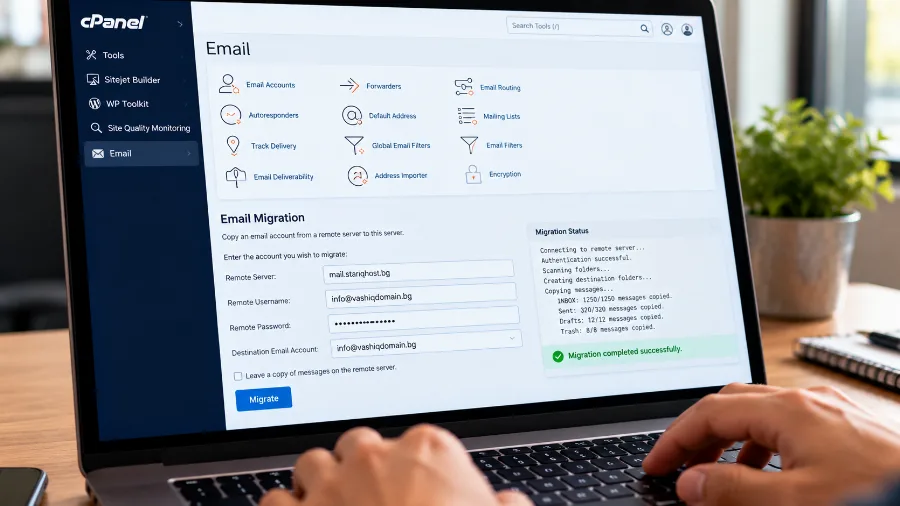
Email is the part that causes the most trouble, because messages keep arriving even while you're moving the site. Here is the right order:
- Create the same mailboxes on the new host, with the same names.
- Move the existing messages with an IMAP migration. It copies messages from the old mailbox to the new one, folders included. Many hosts have a tool for this or will do the migration for you.
- Change the MX records to point to the new mail server, if you haven't switched the nameservers completely.
- Update the SPF and DKIM records for the new server, or your outgoing emails will start landing in spam.
- Run the IMAP migration once more a few hours later, to catch messages that arrived in the old mailbox during the switch.
You'll find more about setting up email and the SPF, DKIM and DMARC records in the article how to create a business email.
What's specific to WordPress
WordPress is the most widely used platform and has its own quirks when it moves:
- Migration plugins – tools such as All-in-One WP Migration, Duplicator and UpdraftPlus package the whole site into one file that is restored on the new host. For small and medium sites, this is the easiest way without technical knowledge;
- The wp-config.php file – it holds the database details. If you copy the site manually, you need to enter the new database name, user and password;
- Replacing addresses in the database – if you also change the domain during the migration, the addresses in the database must be replaced with a dedicated tool, not a plain search and replace, because WordPress stores some data in serialised form;
- The cache – clear the plugin and server cache after the migration, or you may keep seeing old versions of your pages;
- Permalinks – if inner pages return a 404 error, save the permalink settings again from the admin area.
The new provider matters a lot for WordPress. Hosting tuned for WordPress comes with server-level caching, current PHP and automatic backups, so the site is usually faster from the very first day after the move.
Website migration vs domain transfer: what's the difference
The two are often confused, but they are completely different operations:
- A website migration (the subject of this article) moves the files, database and email to a new server. The domain stays with its current registrar; only the DNS records change.
- A domain transfer changes the company the domain itself is registered with. The website may not move at all.
You can do one without the other, or both together, but it's safer to do them on different days. Move the website first, make sure everything works, and only then change registrar. You'll see how the second one works on the domain transfer page.
Common mistakes when changing hosting
- Cancelling the old hosting too early – keep it active for at least 3–7 days after the DNS change. If anything is missing, you can still get it from there;
- Forgotten email – the website has moved, but the MX records still point to the old server, which stops accepting mail once it's cancelled;
- No backup – a migration without your own copy is a gamble;
- A different PHP version – the site shows a white screen or errors because the new server runs a version that is too new or too old;
- A high TTL – some visitors see the old site for a whole day, and orders and form submissions get split between the two servers;
- Migrating at the busiest time – pick the day and hour with the fewest visitors, such as late evening or a Sunday;
- Missing redirects – if you also change page addresses, without 301 redirects you lose your Google rankings.
Does changing hosting affect SEO
If the domain and the page addresses stay the same, changing hosting doesn't harm your Google rankings. Google doesn't track which server a site is on, only whether its pages are reachable and how fast they load. That's why moving to faster hosting often improves rankings over time, because it improves Core Web Vitals.
The risk comes from mistakes: hours of downtime, pages returning 404 errors or search engines being blocked. After the migration, check Google Search Console for new crawl errors and resubmit your sitemap.
Frequently asked questions
How long does it take to migrate a website to a new host?
Copying a small or medium site takes anywhere from a few minutes to an hour. New DNS records usually spread within a few hours. With preparation and testing, the whole process fits into a single day.
Will my website go down during the migration?
Not if you follow the order in this article. The old server keeps serving visitors while the new one is prepared and tested, and the DNS switch is practically invisible.
Will I lose my Google rankings when I change hosting?
No, as long as the domain and page addresses don't change and the site keeps working without interruption. Faster hosting can even help your rankings.
Can I change hosting without technical knowledge?
Yes. With WordPress, migration plugins do most of the work, and many providers will move the site for you. Your job is to prepare the access details and check the site after the move.
Do I need to transfer my domain as well?
No. The domain can stay with its current registrar, and you only change the DNS records to point to the new host.
What happens to my email during the switch?
If you create the mailboxes in advance, move the messages over IMAP and change the MX records at the right moment, not a single email is lost. Run the email migration a second time after the switch to catch messages from the last few hours.
Conclusion
Migrating a website to a new host only seems scary until you've done it once. A full backup, a low TTL, testing the new server before switching DNS, careful handling of email and keeping the old hosting active for a few more days: these five things make the migration invisible to visitors and safe for your Google rankings. The reward is a faster website, calmer support and hosting that grows with your business.
Thinking about changing hosting? Choose a plan built for speed and security, and move your website without downtime.