
What is DNS: how it works, DNS records and DNS servers
What DNS is and how it works: DNS servers, record types, TTL and nameservers, plus what to do when the DNS server is not responding.

Every time you open a website, send an email or log in to an app, something happens in a fraction of a second that almost nobody notices: the name you typed is translated into an address computers understand. That job is done by DNS. While everything works, nobody thinks about it. The moment something goes wrong, the site stops opening, email stops arriving and the browser shows an error that might as well be in a foreign language.
In this article you'll learn what DNS is, how it works, what a DNS server is, which records a domain has and how to change them safely. You'll also see what to do when you get the message "DNS server not responding".
In short
- DNS is the system that translates names such as yourcompany.com into the IP addresses of servers.
- There are two kinds of DNS servers: those that look up the answer for you and those that hold a domain's records.
- Records (A, CNAME, MX, TXT and others) decide where the website lives, where email arrives and how ownership is verified.
- Changes don't apply everywhere at once. How quickly they show up depends on the TTL.
- Most "DNS server not responding" errors are fixed on your side, with a restart or by switching DNS servers.
What is DNS
DNS stands for Domain Name System. It's often compared to the internet's phone book. People remember names, but computers connect using numbers called IP addresses. DNS sits in the middle and translates one into the other.
When you type maxbg.net into your browser, it has no idea where the site physically is. So it first asks DNS for the IP address behind that name. Only once it gets an answer, for example 203.0.113.10, can the browser connect to the server and load the page.
Without DNS the internet would still work, but everyone would have to remember a string of numbers for every website. On top of that, the address would change every time a site moved to a new server. DNS solves both problems: the name stays the same, and any server can sit behind it.
If you're new to the subject, it helps to first understand what a domain name is and what it's made of. DNS is the mechanism that makes a domain work.
How DNS works: from a name to an IP address

Looking up an address takes several steps. It all happens in milliseconds, but it's worth seeing in order, because it makes it much easier to understand where problems come from.
- A check in the device's memory. The browser and the operating system first look at whether they've recently looked up the same name. If the answer is stored, the lookup ends right there.
- A question to the DNS resolver. If there's no stored answer, the device asks the DNS server it uses. Usually that's your internet provider's server or a public one such as Cloudflare's or Google's.
- A question to the root servers. The resolver doesn't know the answer, so it asks one of the root DNS servers. They don't know the website's IP address, but they know who is responsible for the extension, such as .net or .com.
- A question to the extension's servers. The .net servers say which servers are responsible for that specific domain. These are its nameservers.
- A question to the domain's nameservers. They hold the records and return the exact answer: the website's IP address.
- The answer is returned and stored. The resolver passes the address to the browser and keeps it for a set time, so it doesn't have to repeat the whole journey next time.
That last step explains why DNS changes aren't visible everywhere straight away. Every resolver in the world keeps old answers for as long as the record allows. We'll come back to this in more detail a little further down.
What is a DNS server
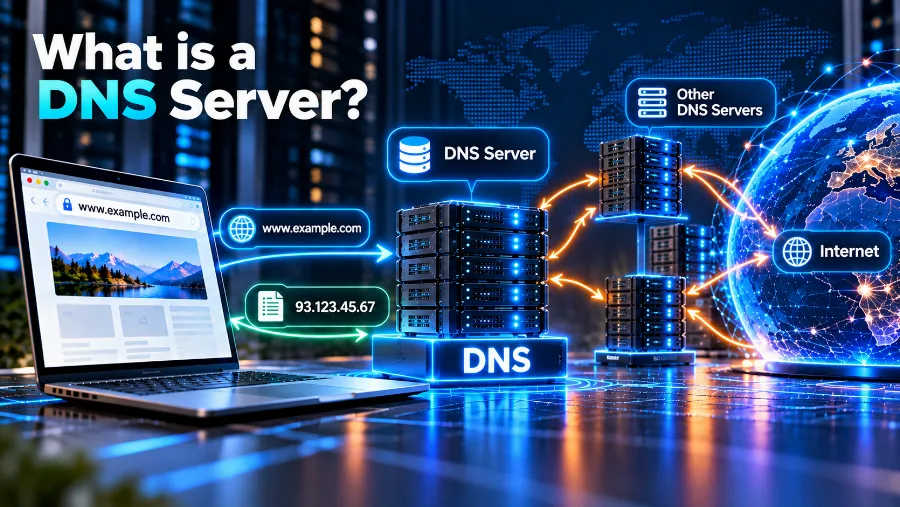
The term "DNS server" is used for two different things, and that often confuses people.
A recursive DNS server (resolver) is the server that looks up the answer for you. It receives the question from your computer or phone, goes through all the steps above and returns the finished IP address. When your network settings mention a "DNS server", this is the one they mean. By default it comes from your internet provider, but you can also use a public one, such as Cloudflare's 1.1.1.1, Google's 8.8.8.8 or Quad9's 9.9.9.9.
An authoritative DNS server (nameserver) is the server that holds the records for a specific domain and gives the final answer about it. When you register a domain, these are the servers where you set where the website points and where email arrives. They're usually provided by your registrar or your hosting company.
Put simply, the resolver is the one asking and the nameserver is the one that knows the answer. If your site won't open only for you, the problem is most often with the resolver. If it won't open for anyone, it's most likely in the records on the nameservers.
Types of DNS records
Records are the lines that tell the internet what to do with a domain. Each has a type, a name and a value. These are the ones you'll come across most often:
| Type | What it's for | Example value |
|---|---|---|
| A | Points the domain to the IPv4 address of the server where the website lives | 203.0.113.10 |
| AAAA | The same as A, but for newer IPv6 addresses | 2001:db8::1 |
| CNAME | Makes one name an alias of another, for example www pointing to the main domain | yourcompany.com |
| MX | Names the server that receives the domain's email | mail.yourcompany.com |
| TXT | Free text used to verify ownership and protect email (SPF, DKIM, DMARC) | v=spf1 include:… ~all |
| NS | Says which nameservers are responsible for the domain | ns1.provider.com |
| CAA | Names the organisations allowed to issue SSL certificates for the domain | 0 issue "letsencrypt.org" |
For an ordinary business website, the most important ones are the A record (where the site is), the MX record (where the email goes) and the TXT records for email. The last ones are often underestimated, and without them your messages easily end up in spam. You'll find a step-by-step guide to setting up SPF, DKIM and DMARC in the article on how to create a business email.
One important rule: a CNAME can't sit on the root domain itself alongside other records. That's why the root name usually points with an A record, and www points to it with a CNAME.
Nameservers: who manages a domain's DNS
Every domain has at least two nameservers. They're set with the registrar and decide where all the other records are stored and managed. If the nameservers point to your hosting company, you change the records in its control panel. If they point to the registrar or to an outside service, you make the changes there.
This is where a lot of confusion comes from. People change the A record at the registrar while the nameservers point to the hosting company, and then wonder why nothing changes. The rule is simple: you edit the records wherever the nameservers point. Anything changed anywhere else is ignored.
There are two ways to point a domain to a new host:
- Changing the nameservers. The host takes over the domain's entire DNS. It's convenient when everything, website and email, is in one place.
- Changing only the A and MX records. DNS stays with the registrar, and you only change the addresses. It's convenient when the website and email are with different providers.
Changing nameservers isn't the same as transferring a domain to another registrar. With a transfer, you change the company your domain is registered with, and the nameservers can stay the same. If you want to move the domain itself, see how a domain transfer works.
TTL and DNS propagation

Every DNS record has a TTL (time to live) value. It shows how many seconds resolvers around the world may keep the answer before asking again. A TTL of 3600 means one hour, and 86400 means a full day.
When you change a record, the new value is available on the domain's nameservers straight away. Resolvers that have already stored the old value, however, will keep returning it until its TTL runs out. That's why some visitors see the new site within minutes and others only after a few hours. This is called DNS propagation.
Changing nameservers usually takes longer than changing an ordinary record, because it also goes through the extension's servers. It's normal for it to take up to a day, and in rare cases up to 48 hours.
If you're planning a big change, such as switching hosts, lower the TTL to 300 seconds a day in advance. That way, on the day of the switch, the old answers will expire within minutes. It's exactly how it's done when you migrate a website to a new host, where doing the steps in the right order decides whether visitors notice anything at all.
How to change your domain's DNS records
The process is almost the same with every provider:
- Find out where the nameservers point. The answer tells you which control panel to make the changes in.
- Open the DNS management section. It's usually called "DNS", "Zone" or "DNS records" in the domain's settings.
- Write down the old values. Before changing anything, copy the current records. If something goes wrong, you can put them back in seconds.
- Change or add the record. Choose the type, enter the name (the root domain is often written as @) and the value.
- Save and check. After a few minutes, check whether the new record is visible.
When you register a domain with us, DNS management is included in the price. You can point the domain to our hosting or to an outside server from the same panel. Check whether the name you want is available on the domain search page.
How to check DNS records
You don't have to wait to find out whether a change has gone through. There are a few easy ways to see what DNS is returning right now:
- With the nslookup command. It works on Windows, macOS and Linux. For example,
nslookup yourcompany.comshows the IP address, andnslookup -type=mx yourcompany.comshows the mail servers. - With the dig command. On macOS and Linux it gives a more detailed answer, including the TTL. For example,
dig yourcompany.com A. - With online tools. There are free websites that query DNS servers in different countries at the same time. That way you can see how far the change has propagated.
It's a good habit to check not only through your own resolver but also directly against the domain's nameserver. If the value there is new, the change has been made correctly and all that's left is for the TTL to expire.
DNS server not responding: causes and fixes

The "DNS server not responding" message is one of the most common errors on Windows. It means your device can't get an answer from the resolver. The websites themselves are usually fine; the problem lies between you and the DNS server.
Try these steps in this order:
- Restart your router and your device. It sounds obvious, but it solves a large share of cases.
- Clear the DNS cache. On Windows, open Command Prompt and type
ipconfig /flushdns. On macOS, the command issudo dscacheutil -flushcache; sudo killall -HUP mDNSResponder. - Try another browser or device. If the site opens on your phone over mobile data but not on your computer, the problem is in your local network.
- Temporarily turn off your VPN, antivirus or firewall. They sometimes block DNS requests.
- Switch DNS servers. If your provider's server is slow or not responding, move to a public one.
If your website won't open for anyone, not just for you, the cause is different: an expired domain, a wrong A record or a problem with the host. In that case, check the records with nslookup as described above.
How to change the DNS server on your computer or phone
Changing your resolver is safe and easy to undo. It often makes websites open a little faster, too.
- Windows. Open Settings, then Network & internet, select your connection and set the DNS addresses manually in its DNS settings, for example 1.1.1.1 and 1.0.0.1.
- macOS. Open System Settings, then Network, select your connection, click Details and open the DNS tab. Add the new addresses.
- Android. Under Network & internet there's a Private DNS option. Enter, for example, one.one.one.one or dns.google.
- iPhone. In the settings of your Wi-Fi network, tap Configure DNS, switch to Manual and add the addresses.
If you want the change to apply to every device at home or in the office at once, change the DNS server in your router's settings.
DNS and security
Because DNS decides where your visitors and your email go, it's an attractive target. If someone changes your records, they can redirect your site to a fake copy or intercept your messages. Here's how to protect yourself:
- Secure your registrar account. Use a strong password and two-factor authentication. Most attacks on DNS start with a hijacked account.
- Lock your domain. A transfer lock stops anyone from moving the domain without your knowledge.
- Turn on DNSSEC if it's supported. It signs DNS answers and stops them from being forged along the way.
- Add SPF, DKIM and DMARC. They stop other people from sending email in your domain's name.
Frequently asked questions
What does DNS stand for?
DNS stands for Domain Name System. It translates website names into IP addresses.
How long do DNS changes take?
On the domain's nameservers, the change is available immediately. Visitors see it once the old record's TTL has expired, usually within a few minutes to a few hours. Changing nameservers can take up to 24 to 48 hours.
Which DNS server is the fastest?
It depends on your location and your internet provider. Public resolvers such as 1.1.1.1 and 8.8.8.8 are usually fast and stable, but the difference is often just a few milliseconds. What matters more is that the server is reliable.
Is DNS free?
For most people, yes. Public resolvers are free, and DNS management is usually included in the price of a domain or hosting plan. Paid DNS services are mainly used by large websites with special requirements.
Does DNS affect website speed and SEO?
Slow or unreliable DNS adds time before a site even starts to load. If DNS fails, search engines can't reach the site and it temporarily loses visibility. That's why reliable nameservers are part of a solid foundation for any website.
Conclusion
DNS is the invisible system that connects your website's name to its server, its email and every service around them. You only need to know a few things: the resolver asks, the nameserver knows, records are changed wherever the nameservers point, and the TTL decides how quickly changes show up. With that knowledge, most DNS problems can be solved in minutes, and switching hosts or email providers goes through without surprises.
Looking for a domain with easy DNS management? Check whether your name is available and point your domain wherever you like from a single panel.