
What is SSH and how to connect to your server
What SSH is, how it works and how to connect to your server from Windows, macOS and Linux or with PuTTY. SSH keys, basic commands and securing access.
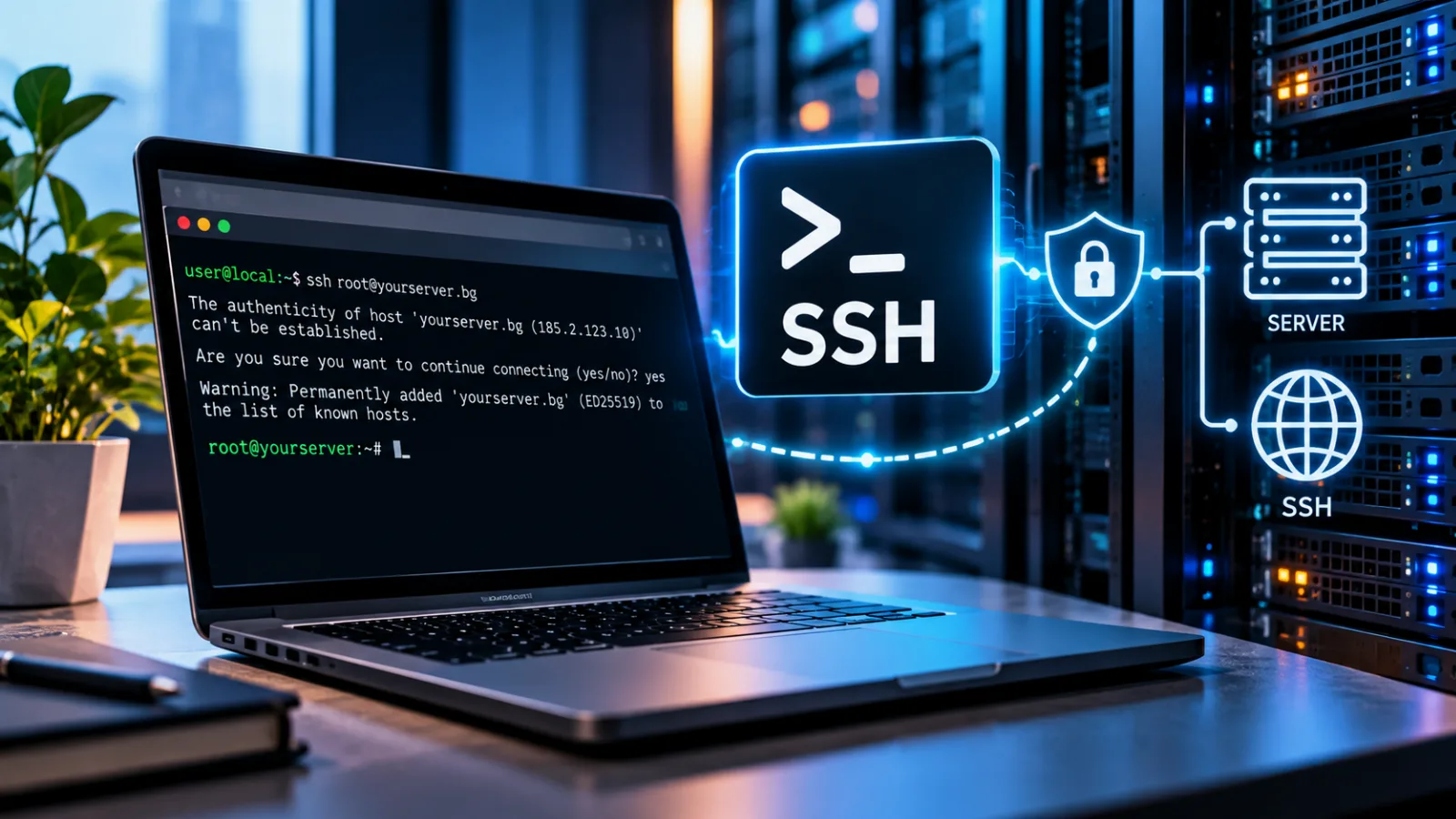
You've bought a VPS, and the email from your host has three lines: an IP address, a username and a password. There's no "Log in" button and no familiar control panel. Just an instruction to connect "over SSH". For someone who has only ever used shared hosting, that sounds like the start of something complicated.
In fact, SSH is simply the way you talk to a server remotely. After the first five minutes it will feel as natural as opening a website in your browser. In this article you'll learn what SSH is, how it works, how to connect from Windows, macOS and Linux, how to log in with a key instead of a password and how to secure access so your server doesn't become an easy target.
In short
- SSH is a protocol for a secure, encrypted connection to a server. Through it you type commands that run on the server, as if you were sitting in front of it.
- To connect, you need the server's IP address or name, a username, a password or key and an SSH program. Windows 10 and 11, macOS and Linux already have one built in.
- SSH keys are safer and more convenient than a password. Once they're set up, it's a good idea to turn off password login altogether.
- Most connection errors come down to a wrong address, a closed port or a key the server doesn't accept, and they can be fixed in minutes.
What is SSH
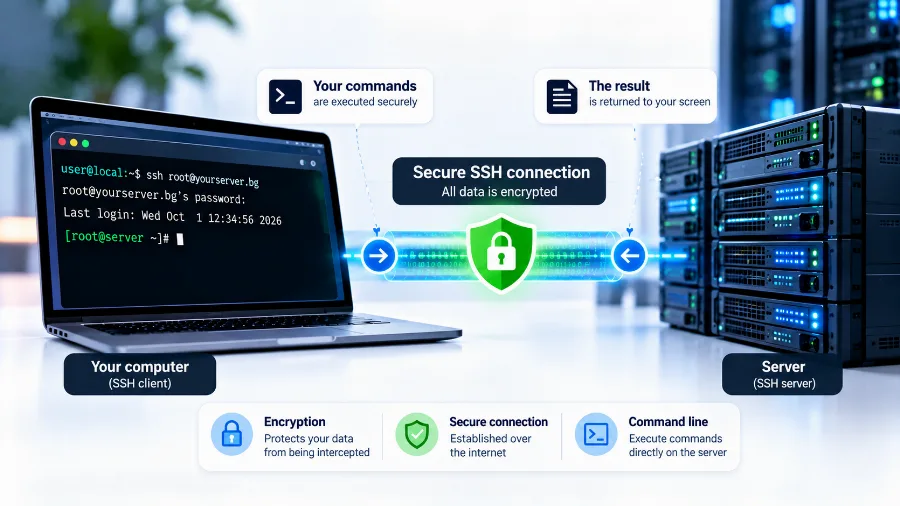
SSH stands for Secure Shell. It's a protocol, meaning a set of rules by which two computers establish a protected connection over the internet. One is your computer, the other is the server. Once the connection is open, you get a command line on the server: whatever you type runs there, and the result comes back to your screen.
Before SSH, the same job was done by protocols such as Telnet, which sent everything as plain text, passwords included. Anyone able to listen in on the network along the way could read them. SSH appeared in 1995 precisely to solve that problem. Today it's the standard way to manage Linux servers all over the world.
If you've worked with shared hosting, you've probably never needed it. There, you manage your site through a control panel in the browser. With a VPS or a dedicated server, though, you get the whole machine, and SSH is the front door to it.
How SSH works
A program runs on the server that constantly listens for incoming connections, usually on port 22. On your computer runs a client, a program that connects to it. When you connect, the two sides first agree on how they'll encrypt the conversation and exchange keys. Only then comes the question of who you are.
There are two important checks. The first is that the server proves to you that it's the real server and not someone pretending to be it. That's what its fingerprint is for, which we'll come back to below. The second is that you prove to the server that you're allowed in, with a password or an SSH key.
Once both checks pass, everything sent between you and the server is encrypted. Commands, passwords and file contents travel in such a way that even if someone intercepts them, they can't read them.
What SSH is used for
The command line is the best-known use, but far from the only one:
- Managing the server. Installing software, updating the system, restarting services, reading logs.
- Transferring files. SFTP and SCP run over SSH and copy files with encryption, without a separate FTP server.
- Backups and migrations. Tools such as
rsyncmove whole websites directly between two servers, without going through your computer. - Working with code. Git uses SSH to push and pull code from repositories without asking for a password every time.
- Secure tunnels. Through SSH you can reach a database or an admin panel that isn't open to the internet, as if it were on your own computer.
What you need to connect
Before you connect for the first time, check you have four things. You'll usually find them in the email your host sends when the server is activated:
- The server address. An IP address, for example
203.0.113.10, or a name that points to it, for exampleserver.yourdomain.com. - A username. On a new VPS this is most often
root, the main administrator. - A password or key. The initial password, or an SSH key if you added one when ordering.
- A port. The default is 22. If it's been changed, you'll be told explicitly.
The fifth thing you need is a program to connect with. The good news is that you almost certainly have one already.
How to connect from Windows
Windows 10 and 11 come with an SSH client built in. Open PowerShell or Command Prompt and type:
ssh root@203.0.113.10
Replace the example address with your server's address. If the port isn't 22, add it like this: ssh -p 2222 root@203.0.113.10. You'll be asked for the password. As you type it, nothing appears on screen, not even asterisks. That's normal and is a security measure. Type it and press Enter.
With PuTTY
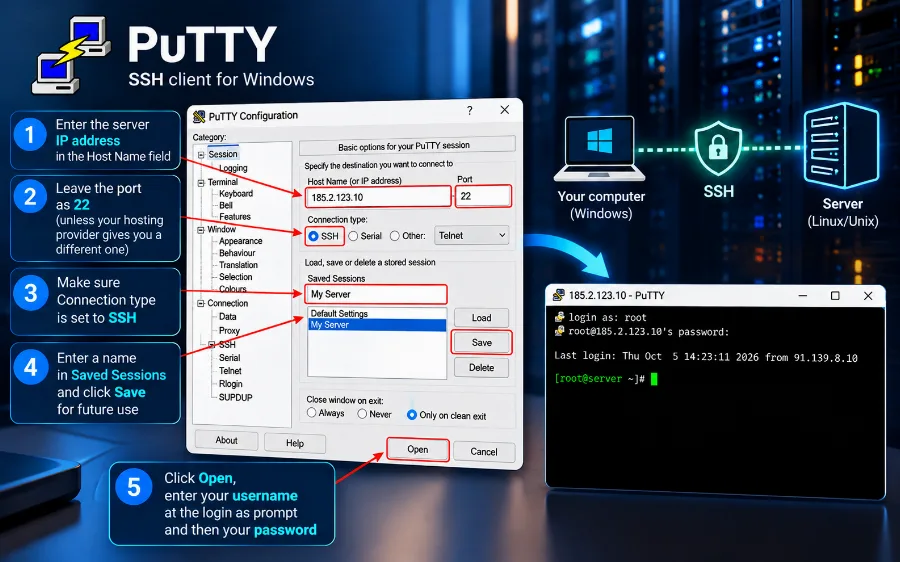
Many people prefer PuTTY, a free program that has been the standard SSH tool on Windows for years. Download it from its official website and run it:
- In the "Host Name" field, enter the server's IP address.
- In the "Port" field, leave 22 unless your host has given you another one.
- Make sure "Connection type" is set to SSH.
- If you'll be connecting often, type a name under "Saved Sessions" and click "Save", so you don't have to enter the address every time.
- Click "Open", enter the username at the "login as" prompt, then the password.
PuTTY has one more convenience: select text with the mouse and it's copied automatically, and a right click pastes copied text. That makes it easy to paste a long command without retyping it.
How to connect from macOS and Linux
On a Mac, open the Terminal app; on Linux, any terminal will do. The command is the same as on Windows:
ssh root@203.0.113.10
If you connect to several servers, you can save their settings in the ~/.ssh/config file. There you set a short name, address, user and port for each server. After that, instead of the long command, you just type ssh myserver.
The first connection and the server's fingerprint
When you connect to a new server for the first time, you'll see a message that begins roughly like this: "The authenticity of host … can't be established", followed by a long string called a fingerprint and a question asking whether to continue.
This isn't an error. Your computer is simply seeing this server for the first time and asking whether you trust it. If you type "yes", the fingerprint is saved. On every later connection your computer checks that it's the same server on the other end. If someone tries to impersonate it, you'll get a clear warning.
If you want to be completely sure, compare the fingerprint with the one your host gave you, or with the one you see through the remote console in the panel. For a normal new server, you can safely confirm.
SSH keys: safer than a password
A password, however long, can be guessed, stolen or reused somewhere else. An SSH key works differently. It's a pair of linked files: a private key that stays only on your computer and a public key that you upload to the server. The server only lets in whoever holds the private key, and the private key itself never travels over the network.
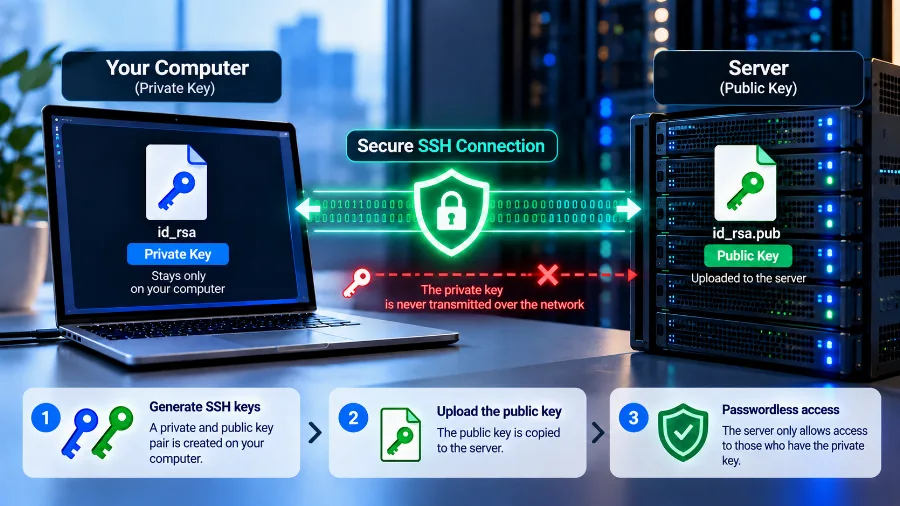
The key is created with a single command in the terminal or PowerShell:
ssh-keygen -t ed25519
The program will ask where to save the key and whether to protect it with a passphrase. Keep the default location and set a passphrase. That way, even if someone steals the file, they can't use it without the passphrase.
Then upload the public key to the server. On macOS and Linux the easiest way is ssh-copy-id root@203.0.113.10. On Windows, copy the contents of the id_ed25519.pub file and add it on a new line to the ~/.ssh/authorized_keys file on the server. If you use PuTTY, the key is created with its companion program PuTTYgen, and in PuTTY you point to it under "Connection → SSH → Auth".
From then on you log in without a password. The server checks the key automatically, and you only enter the passphrase if you've set one.
Basic commands for your first few minutes
You don't need to know hundreds of commands to find your way around a server. Here are the ones you'll use most at the start:
| Command | What it does |
|---|---|
pwd |
Shows which folder you're currently in |
ls -la |
Lists the files in the current folder, including hidden ones |
cd /var/www |
Moves into the given folder |
df -h |
Shows how much free space there is on the disk |
free -m |
Shows how much memory is in use |
top |
Shows the load and running processes live (press "q" to exit) |
systemctl status nginx |
Checks whether a given service is running |
exit |
Closes the connection |
One important rule: when you're logged in as root, the server runs every command without asking. Before you delete or change anything, double-check where you are and exactly what you're typing.
How to secure SSH access
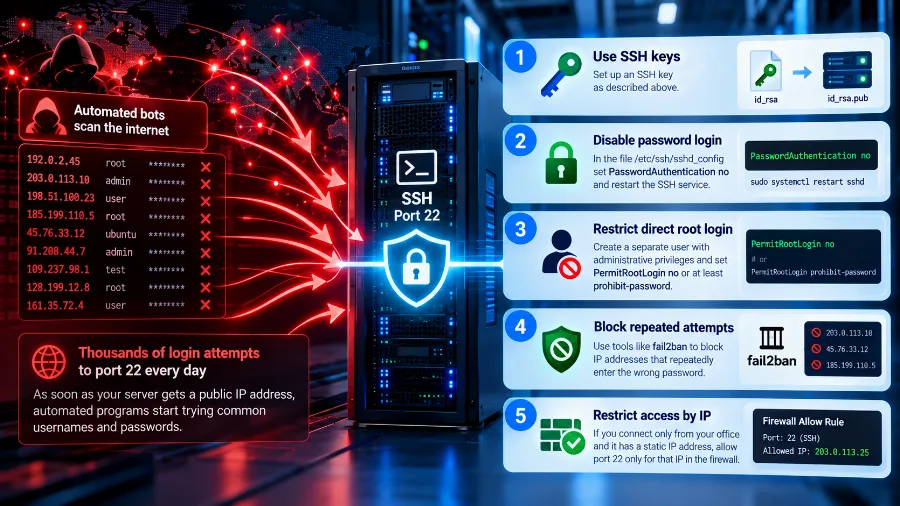
As soon as a server gets a public IP address, automated login attempts start pouring in on port 22. Programs crawl the internet trying the most common usernames and passwords. It isn't personal, but if the password is weak, sooner or later they'll succeed. Here's what to do on day one:
- Log in with a key. Set up an SSH key as described above.
- Turn off password login. In the
/etc/ssh/sshd_configfile, setPasswordAuthentication noand restart the SSH service. - Restrict direct root login. Create a separate user with administrator rights and set
PermitRootLogin no, or at leastprohibit-password. - Block repeated attempts. Programs such as fail2ban block addresses that keep entering the wrong password.
- Restrict access by IP. If you only connect from the office and it has a fixed IP address, allow port 22 only for that address in the firewall.
A word of warning from experience: when you change your SSH settings, don't close the current connection. Open a second one and check that you can log in with the new settings. If something goes wrong, the first session is still open and you can undo the change. Otherwise you risk locking yourself out, and then you're left with the remote console in your host's panel. What happens when someone does manage to get in is covered in our article on hacked websites.
Common connection errors
Almost every connection problem comes down to a handful of messages. Here's what they mean:
Connection timed out
Your computer gets no response at all. Most often the address is wrong, the server is switched off or a firewall along the way is blocking the port. Check the address and whether the server is running in the panel.
Connection refused
The server responds but refuses the connection on that port. Usually the SSH service isn't running or is listening on a different port. Check the port and, if needed, log in through the remote console and start the service.
Permission denied
The connection is established, but the server doesn't accept your credentials. The cause is a wrong password, a wrong user or a key that wasn't uploaded properly. Check the file permissions too: the ~/.ssh folder should have permissions 700, and authorized_keys should have 600.
Remote host identification has changed
The server's fingerprint doesn't match the saved one. If you've just reinstalled the operating system, that's expected, and you remove the old entry with ssh-keygen -R 203.0.113.10. If you haven't done anything like that, stop and check with your host before continuing.
SSH, SFTP and FTP: what's the difference
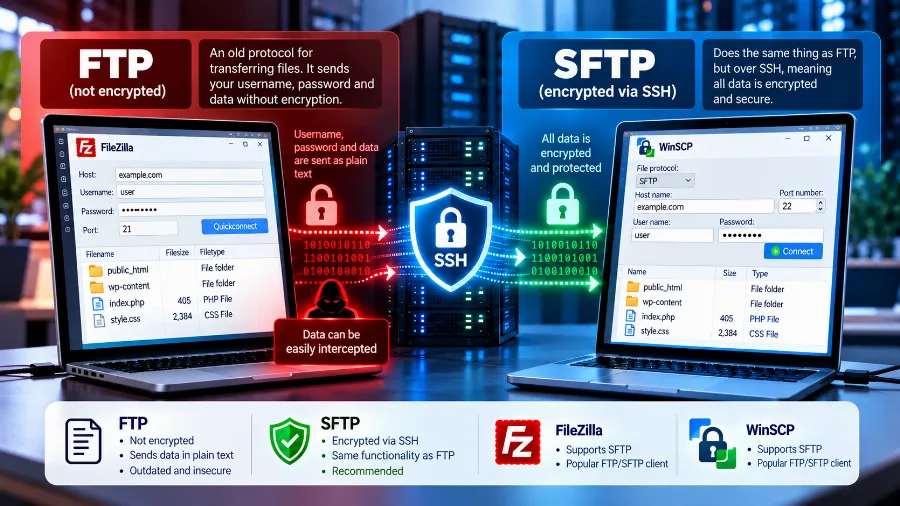
The three are often confused. FTP is an old file transfer protocol that sends the password and data without encryption. SFTP does the same job but over SSH, so everything is protected. Most file transfer programs, such as FileZilla or WinSCP, support SFTP. If you have SSH access, use SFTP instead of FTP.
For bigger jobs, such as moving a whole website between two servers, SSH allows something even more convenient: files are copied directly from server to server with rsync. We describe the whole move, step by step, in our article on migrating a website to a new host.
Do you need SSH if you have a control panel
Not necessarily. If the server has a control panel, most everyday tasks, such as websites, email and databases, are done in the browser. You need SSH for things the panel doesn't cover: installing specific software, troubleshooting, automation, working with Git.
If you don't want to deal with the command line at all, there's another option: a managed server, where setup and maintenance are your host's job. We explain the differences between the two approaches in detail in our article on what a VPS is. And if you're looking for a machine on which to practise what you've learned here, a VPS server with full root access, SSH and a remote console is the best way to start.
Frequently asked questions
Is SSH safe?
Yes. The whole connection is encrypted, and the server and client verify each other. The weakest point is usually not the protocol but a weak password. That's why logging in with a key and turning off passwords make SSH far more resistant to automated attacks.
Which port does SSH use?
Port 22 by default. Some administrators change it to cut down on automated login attempts. That reduces the noise in the logs, but it doesn't replace real protection with keys.
Can I use SSH from my phone?
Yes. There are apps for Android and iOS that work as SSH clients. They're fine for a quick check in an emergency, but for serious work a computer is far more convenient.
What should I do if I've locked myself out?
Log in through the remote console in your host's panel. It works like a screen connected directly to the machine and doesn't depend on SSH. From there you can fix the settings and restart the service.
Is SSH available on shared hosting?
It depends on the provider and the plan. On shared hosting, SSH is often limited or disabled by default, because most tasks are done through the control panel.
Conclusion
SSH only looks intimidating the first time. In fact, it's a secure and fast way to talk to your server from anywhere: with one command in the terminal or a few clicks in PuTTY. Learn the basic commands, switch from a password to a key and close the door on automated attacks on day one. That way your server stays under your control, not under the control of someone who guessed your password.
Looking for a server with full root access, SSH and a remote console? See our VPS plans with guaranteed resources and the operating system of your choice.