
Hacked website: how to tell and what to do
How to recognise that your website has been hacked, how to check for yourself, what to do in the first hour, and how to clean up the site and get Google's warning removed.

You search for your own business on Google, and under your website's name there's a warning: "This site may be hacked". Or a customer calls to say that when they open your site on their phone, it sends them to some casino. Or your hosting provider writes that thousands of spam emails are going out from your account. Whatever the first clue, the feeling is the same: someone has got in where they shouldn't have.
A hacked website is unpleasant, but it isn't a disaster if you act calmly and in the right order. In this article you'll learn how to recognise that your website has been hacked, how to check for yourself, what to do in the first hour, how a site is cleaned up and how to get Google's warning removed. Finally, you'll see how to stop it from happening again.
In short
- Most websites aren't hacked by a person but by automated programs that look for outdated software and weak passwords.
- The most common signs are a warning on Google, redirects to other websites, unfamiliar pages in search results and new administrators you didn't create.
- First, change all your passwords and contact your host. Don't delete things at random, because you'll lose the traces that show how the attacker got in.
- The safest clean-up is restoring a clean backup and then closing the hole. Otherwise the site gets reinfected within days.
What a hacked website actually means
When people hear "hacked website", most of them picture a defaced home page with someone else's message on it. That's what attacks looked like years ago. Today it's rare, because it's too noisy. An attacker would rather the website looks normal to its owner and quietly works for them for as long as possible.

Here's what happens most often:
- Hidden spam pages. Hundreds or thousands of pages about medicines, gambling or counterfeit goods appear on the site. You don't see them in the menu, but Google indexes them, and your site's name shows up next to other people's keywords.
- Redirects. Visitors coming from Google or from a phone are sent to another website. When you type the address in directly, everything looks normal.
- Malicious code aimed at visitors. The site tries to infect the computers of the people who open it, or shows them fake "virus" and "prize" messages.
- Fake login pages. A copy of a bank's or courier's page is uploaded to a folder on your site, and the link is sent out by email. Your domain becomes the cover for a scam.
- Sending spam. A script on the site uses the server to send emails in bulk. As a result, your genuine emails start landing in spam too.
- A backdoor. A small file that lets the attacker come back at any time, even after you've changed your passwords. It's almost always there, whatever else has been done.
Why your website was targeted
"I'm a small business; who would bother with me?" It's the most common reaction and an understandable one, but in most cases there is no "who". Hacking is rarely personal. Programs crawl the internet around the clock, checking millions of websites for the same weaknesses: an old plugin version with a known vulnerability, an admin login with a password like "admin123", a forgotten installation in a subfolder.
When they find such a weakness, they don't care whether the site belongs to a bank or a local hair salon. What's valuable is the server itself: its IP address, your domain's reputation with Google, the ability to send emails and host pages. Small websites are actually easier targets, because they're updated less often and fewer people are watching them.
Signs that your website has been hacked
Some signs are obvious straight away; others stay hidden for months. Here are the ones not to ignore:
- Google's results show "This site may be hacked" or "This site may harm your computer" under your website.
- Your browser shows a red screen warning about a dangerous or deceptive site.
- Your website redirects to someone else's, but only sometimes, only on a phone or only when you arrive from Google.
- There's a message in the Security issues section of Google Search Console.
- Your host has emailed you about malicious code or bulk email sending, or has suspended the account.
- The admin area has users you didn't create, or your own user is no longer an administrator.
- There are unfamiliar files, and some existing ones were changed on days when nobody was working on the site.
- Your emails suddenly start going to spam or bouncing back.
- Traffic from Google drops sharply, and thousands of pages that aren't yours appear in Search Console.
If you recognise two or more of these signs, assume the site has been compromised until proven otherwise. Spending an hour checking is far cheaper than letting the problem grow for weeks.

How to check whether your website has been hacked
You don't need to be a developer to do the first check. Here are a few steps that take about half an hour.
Search for your site on Google. Type site:yourdomain.com into the search box. You'll see the pages Google knows about on your website. If among them there are titles in Japanese, ads for medicines or pages you never created, that's a clear sign of hidden spam pages.
Open Google Search Console. The Security issues section shows whether Google has found malicious code, deceptive pages or hacked content. You'll also see example addresses there, which help you find the problem.
Check your status in Google Safe Browsing. Google's Transparency Report has a page where you enter your address and see whether the site is flagged as dangerous.
Open the website as a visitor would. Use a phone on mobile data, not the office network, and reach the site through a Google search rather than directly. Some attacks only show the redirect to visitors who arrive that way.
Review the users and files. In the website's admin area, check the list of users. In your hosting control panel, see which files have been changed recently. A file with an unfamiliar name, especially in the uploads folder, is a warning sign.
Here's what usually lies behind the most common signs:
| What you see | What it usually means | Where to start |
|---|---|---|
Unfamiliar pages in a site: search |
Hidden spam pages created by the attacker | Search Console and unfamiliar files on the site |
| Redirects only on a phone or from Google | A modified .htaccess or a script in the theme |
Recently changed files and server settings |
| A red warning in the browser | Malicious code or a deceptive page on the site | The Security issues section in Search Console |
| Your emails go to spam | The site is sending bulk email in your name | Your host's emails and unfamiliar scripts |
| An unfamiliar administrator | The attacker has left themselves a way in | Deleting the user and changing all passwords |
What to do in the first hour
When you realise your site has been hacked, the first impulse is to delete everything suspicious. Don't. Without the traces, you won't find out how the attacker got in, and if you don't close that door, they'll be back. Here's a sensible order:
- Contact your host. Tell them what you're seeing. They have access to the server logs and can often show exactly which file was infected and since when.
- Take a copy of the current state. Yes, of the infected site. It will be used for analysis. Keep it separate and don't restore it.
- Change all your passwords. For the hosting control panel, FTP, the database, the website's admin area and the domain's mailboxes. If you can, do it from a different computer, because sometimes the infection started on the owner's computer.
- If the site is infecting visitors, take it offline temporarily. A "down for maintenance" page for a day is far less damaging than your customers catching a virus from your website.
- Warn people if needed. If scam emails have gone out from your domain, a short message to your customers protects their trust far better than silence.
How a hacked website is cleaned up
There are two main routes, and the choice depends on whether you have a clean backup.
Restoring from a backup
This is the fastest and safest way. Find a copy from before the infection and roll the site back to it. The hard part is choosing the date. Go by the earliest sign you noticed and by the dates of the changed files, then pick a copy a few days older than those.

A backup, however, also brings back the old vulnerability. If you don't update the software and change the passwords right after restoring, the site will be reinfected the same way, sometimes on the very same day.
Manual clean-up
If you have no backup, or all your backups are already infected, manual clean-up is what's left. It takes patience:
- compare the system files with the originals from the official source and replace any that differ;
- look for executable files where they don't belong, most often in the uploads folder;
- check
.htaccessand the index files for unfamiliar redirects; - go through the database for injected scripts and unfamiliar users;
- reinstall all plugins and themes from their official source, not from archives you keep on your computer.
Manually cleaning a badly infected website is a job for a specialist. If you miss even one hidden file, it all starts again.
How to get Google's warning removed
Even once the site is clean, the warning on Google doesn't disappear on its own. You need to tell Google the problem has been fixed.
Log in to Search Console, open Security issues and request a review. Briefly describe what was found and what you did: deleted files, updated software, changed passwords. A specific description helps, while a vague "everything's fixed" is more likely to be rejected.
The review usually takes from one to several days. If Google finds any remaining infection, you'll get a rejection with examples and will need to repeat the clean-up. Hidden spam pages drop out of the results gradually, as the search engine recrawls them and sees they no longer exist.
A hacked WordPress site: what to watch out for
WordPress is the most widely used website platform, which makes it the most common target. The core itself is well protected and regularly updated. The breach almost always comes from something around it:
- Outdated plugins and themes. This is the number one cause. When a vulnerability is found in a plugin, programs start searching for it on a massive scale the same week.
- "Free" premium themes. Paid themes and plugins downloaded from dubious websites very often come with a backdoor built in.
- Forgotten installations. An old test site in a subfolder that nobody updates gives access to the whole hosting account.
- Weak passwords and a user called "admin". Automated login attempts run day and night.
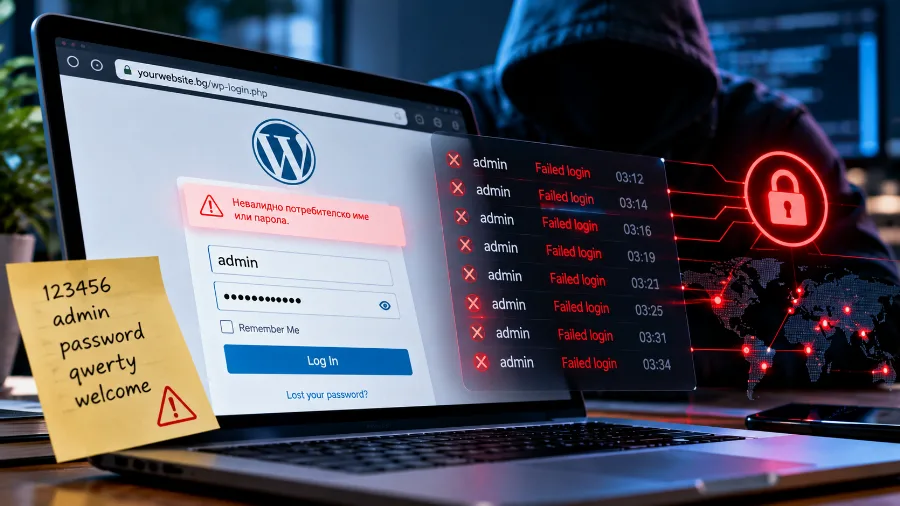
After cleaning a WordPress site, also change the security keys in the wp-config.php file. That ends all open sessions, including the attacker's. Turn off the file editor in the admin area as well, so that someone with stolen access can't change the code from there. If you're choosing where to host a WordPress site now, see also how to choose WordPress hosting, because part of the protection is done at server level.
How to stop it from happening again
Most hacks can be prevented with a few habits that cost next to nothing:
- Update regularly. The system, plugins, themes and PHP version. Turn on automatic updates wherever it's safe to do so.
- Remove what you don't need. Every unused plugin and every old installation is a door someone has to guard.
- Use strong, unique passwords. And two-factor login for the admin area and the hosting control panel.
- Give only the access that's needed. The person who writes articles doesn't need administrator rights.
- Keep backups in a separate place. A copy on the same server can be infected or deleted along with the site. Check at least once that restoring actually works.
- Scan your files. Regular checks for malicious code find an infection within hours rather than months.
Hacking or a DDoS attack: what's the difference
The two are often confused, because in both cases the website "isn't working properly". The difference is significant. In a hack, someone gets into the site and changes something: files, the database, users. In a DDoS attack, nobody gets in; the site is simply buried under so many requests that it stops responding. When the attack ends, it works normally again.
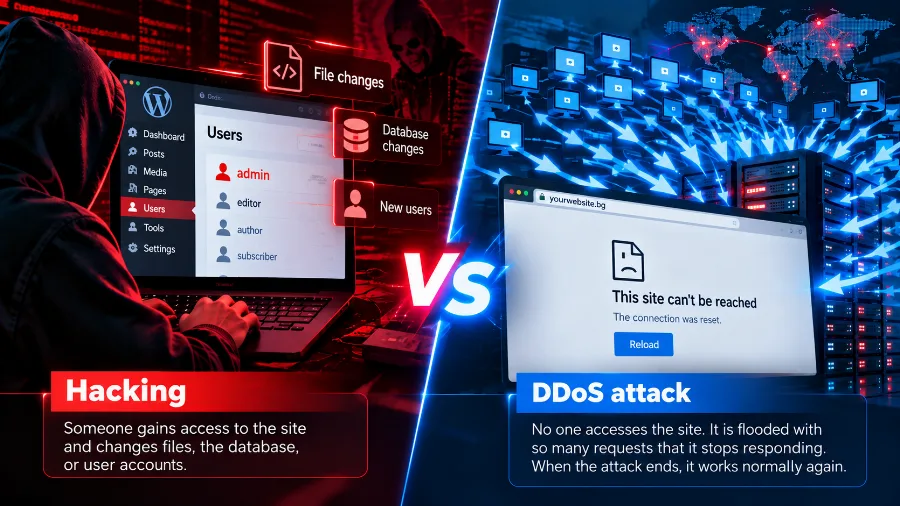
That's why the measures are different too. Updates, passwords and scanning help against hacking. Filtering traffic before it reaches the server helps against being buried. You can read more about this in our article on DDoS attacks.
When it's time to change your hosting
Your host isn't always to blame for a hack. Most often the cause lies in the website itself. There are cases, though, where the environment leaves you unprotected:
- the server runs an old version of PHP that no longer receives security fixes;
- there are no automatic backups, or they're only kept on the same machine;
- there's no malware scanning and no firewall to stop known attacks;
- when there's a problem, support replies days later and can't show you the logs.
If you recognise these, clean up the site and move it. Good shared hosting includes virus scanning, a web application firewall (WAF) and nightly backups on a separate server that you can restore yourself from the panel. We describe how to move your site without downtime, step by step, in our article on migrating a website to a new host.
Frequently asked questions
How can I tell if my website has been hacked?
The quickest way is to search for site:yourdomain.com on Google and open the Security issues section in Search Console. Unfamiliar pages, redirects, browser warnings and unknown administrators are sure signs.
Can a website be hacked without it showing?
Yes, and that's the most common case. Modern attacks are designed so the owner doesn't notice anything. The redirect is shown only to some visitors, and the spam pages don't appear in the menu.
How long does it take Google to remove the warning?
Once you've cleaned the site and requested a review, it usually takes from one to several days. If any infection remains, the request is rejected and you need to submit it again.
Does a hacked website lose its Google rankings?
Yes, if the infection stays for long. The warning drives visitors away, and the spam pages dilute the site. After a clean-up, rankings usually recover within a few weeks.
Is changing my passwords enough?
No. If there's a backdoor on the site, the attacker can get back in without any passwords. Changing them is the first step, but it doesn't replace cleaning and updating.
Conclusion
A hacked website is rarely the result of a personal attack. It's almost always down to outdated software, a weak password or nobody keeping watch. If you catch it in time, act in the right order and close the hole, the site recovers without lasting damage. The best protection, though, remains the boring kind: regular updates, backups kept somewhere else and hosting that watches for malicious code for you.
Want your website scanned for malicious code and backed up every night without having to think about it? See our hosting with a firewall, virus scanning and restoring from the panel.