
Why emails go to spam: SPF, DKIM and DMARC
Why emails go to spam, what SPF, DKIM and DMARC do, how to check your email and how to set up the records step by step.

You send a quote to a customer, and two days later they call to ask when they'll get it. The email arrived, but it landed in the spam folder and nobody saw it. This happens to a lot of businesses, and in most cases the cause isn't the wording but a few missing or incorrect records in the domain's settings.
In this article, you'll find out why emails go to spam, how mail systems decide whom to trust and what SPF, DKIM and DMARC actually do. You'll also see how to check your own email, how to set up the records step by step and which other causes can send your messages to the wrong place.
In short
- The most common reason emails go to spam is that the domain doesn't prove the message really comes from it.
- SPF says which servers are allowed to send on your behalf, DKIM signs every message, and DMARC combines the two checks and says what should happen to messages that fail them.
- Gmail, Yahoo and Outlook now require these records, especially from senders who send a lot of email.
- Checking takes a minute: open the original of a sent message and look for the results of the three records.
- Besides the records, your domain's reputation, the content of your emails and the quality of your recipient lists all matter.
Why emails go to spam
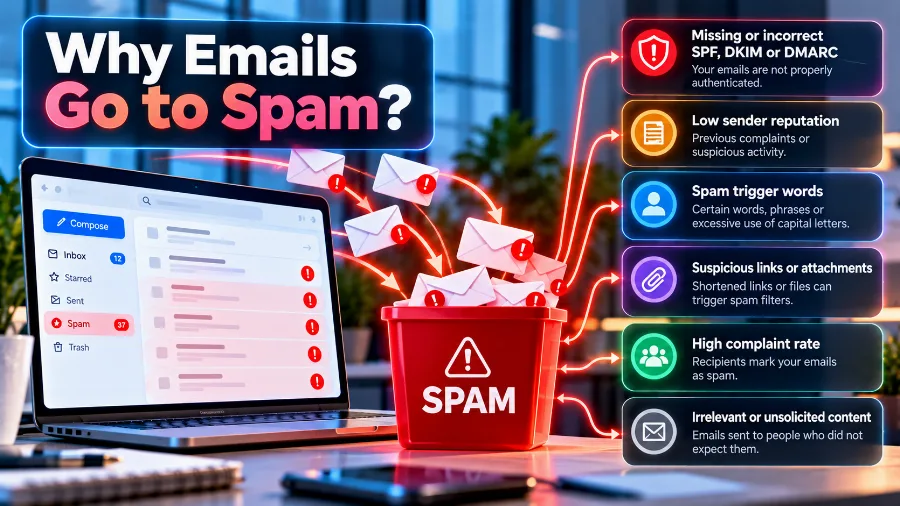
Emails most often go to spam because the sender's domain isn't authenticated with SPF, DKIM and DMARC. Next come a poor server or domain reputation, suspicious content and old recipient lists.
Mail systems receive billions of messages a day, and a large share of them are unwanted or dangerous. That's why every incoming email goes through a series of checks before it's shown to the recipient. The system is trying to answer two questions: does the message really come from whoever claims to have sent it, and is there any reason to trust them?
If there's no clear answer to the first question, the message immediately becomes suspicious. The reason is simple: the sender's address in an email can be faked as easily as the return address on an envelope. Without extra protection, anyone can send a message that appears to come from office@company.com. That's exactly how most phishing attacks work.
The most common reasons a business's emails end up in spam are:
- Missing or incorrect authentication records. The domain has no SPF, DKIM or DMARC, or it has them but they don't cover every service that sends email.
- A poor reputation. The server or the domain has sent spam in the past, for example from an infected website or a compromised mailbox.
- The content of the message. Aggressive wording, a single image with no text, lots of links or suspicious attachments.
- How recipients behave. If people often mark your emails as spam or never open them, mail systems notice.
- Old, unmaintained lists. Bulk emails to addresses that no longer exist are a sure sign of a sender who doesn't choose their recipients carefully.
How mail systems decide whom to trust
When a message reaches the recipient's server, the server first looks at which server it came from and which domain it claims to belong to. It then looks the domain up in DNS, the public system where a domain keeps information about itself. There it checks whether the domain has authorised that server to send on its behalf and whether the message carries a valid signature.
If the answers are positive, the message moves on to the next filters, which assess content and reputation. If they aren't, it may be moved to spam or rejected outright. In other words, authentication records don't guarantee that a message will reach the inbox, but without them the chances are much lower.
All of these records are added in your domain's DNS settings. If you'd like to understand better how this system works and what types of record there are, see our article on what DNS is.
What is SPF: who is allowed to send from your domain
SPF (Sender Policy Framework) is a list of the servers that are allowed to send email on behalf of your domain. It's published as a TXT record in DNS and looks roughly like this:
v=spf1 include:_spf.hosting.com ip4:192.0.2.10 ~all
The record starts with the version, followed by the allowed sources, and ends with a rule for everyone else. In the example, email can be sent through the hosting provider's servers and from one specific IP address. The ending ~all means that messages from other servers should be treated as suspicious, while -all means they should be rejected.
There are a few rules that are often broken. A domain can have only one SPF record. If you add a second one instead of extending the first, the check fails for both. SPF also allows no more than ten DNS lookups during a check. Every include counts as at least one lookup, and some services contain several more of their own. If you send through many external systems, you can easily go over the limit without realising it.
SPF also has a weak spot: it checks the technical address the message came from, not the address the recipient sees in the "From" field. That's why on its own it isn't enough to stop sender spoofing.
What is DKIM: a digital signature on every message
DKIM (DomainKeys Identified Mail) adds a digital signature to every message you send. The sending server signs the message with a private key that it keeps to itself. The public key is published in the domain's DNS, so any recipient can verify the signature.
If someone changes the message along the way, or tries to send a message in your name without the private key, the signature won't match. So DKIM proves two things: that the message really passed through a server you trust, and that its content hasn't been tampered with.
The public key is stored under a name that contains what's called a selector, for example default._domainkey.company.com. The selector lets one domain have several keys at the same time. That's handy when you send email both through your hosting and through a newsletter platform: each service gets its own key. The recommended key length is 2048 bits. Shorter keys are now considered weak.
What is DMARC: the rule that ties the two together
DMARC (Domain-based Message Authentication, Reporting and Conformance) answers the question that SPF and DKIM leave open: what should happen to a message that fails the checks? It's also published as a TXT record, at _dmarc.company.com, and can look like this:
v=DMARC1; p=none; rua=mailto:dmarc@company.com
The most important part is the p rule. With the value none, recipients only send you reports without changing anything. With quarantine, messages that fail go to spam. With reject, they're refused entirely. The address after rua is where mail systems will send aggregate reports on who has sent email from your domain and from where.
DMARC also adds one more condition: the domain verified by SPF or DKIM has to match the domain in the "From" field that the recipient sees. That's exactly what closes the door on spoofing. It isn't enough for a message to be signed by someone. It has to be signed by you.
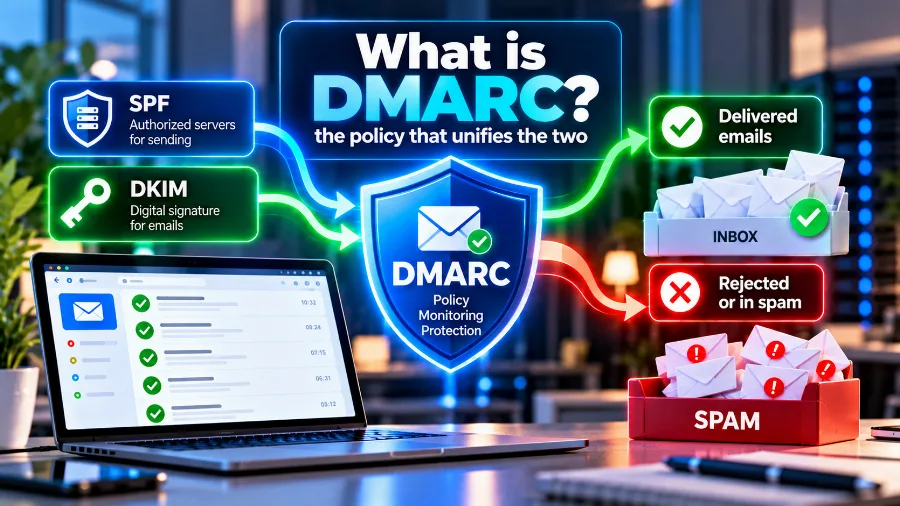
The safest approach is to start with p=none and read the reports for a few weeks. That way you'll see whether any legitimate service, such as your accounting software or online shop, is sending email without being included in SPF and DKIM. Once everything is covered, move to quarantine and then to reject.
SPF, DKIM and DMARC at a glance
The three records work together, and each covers a different part of the check:
| Record | What it checks | Where it's stored | What it protects against |
|---|---|---|---|
| SPF | Whether the server is allowed to send from the domain | A TXT record on the domain itself | Email from servers that aren't yours |
| DKIM | Whether the message is signed and unchanged | A TXT record under selector._domainkey | Forgery and changes in transit |
| DMARC | Whether the checks match the address in the "From" field | A TXT record at _dmarc | Third parties sending in your name |
What Gmail, Yahoo and Outlook require
Since 2024, Gmail and Yahoo have required every sender to have at least SPF or DKIM and a correctly configured reverse DNS record for the sending server. For senders who send more than 5,000 emails a day, the requirements are stricter: they need SPF, DKIM and DMARC, the address in the "From" field must match the verified domain, bulk emails must include a one-click unsubscribe link, and the share of emails marked as spam must stay below 0.3%. In 2025, Microsoft introduced similar rules for Outlook.com.
Even if you only send a few dozen emails a day, there's no point waiting until you reach that threshold. Mail systems assess every sender, and those who have set up all three records enjoy more trust.
How to check whether your records are working
The quickest way is to send an email from your business address to a personal Gmail address. Open the message, click the three dots in the top right corner and choose "Show original". At the top, you'll see the results of the three checks. If SPF, DKIM and DMARC all say PASS, everything is fine. If you see FAIL, NEUTRAL, or a line is missing, there's something to fix.
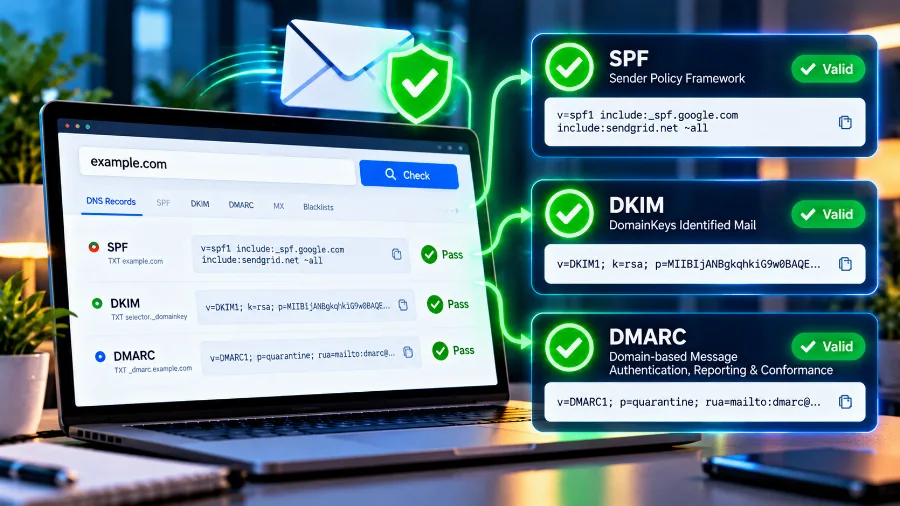
You can also check the records directly in your domain's DNS settings. Look for a TXT record that starts with v=spf1, a record whose name ends in ._domainkey and a record named _dmarc. If any of them is missing, you know where to start. There are also free online tools that check the records by domain name and explain any errors in plain language.
How to set up the records step by step
If your email is on your hosting, part of the work has usually been done already. Even so, it's worth going through every step to make sure nothing has been missed:
- List everything that sends email in your name. The email on your hosting, your online shop, your CRM, your invoicing software, your newsletter platform. Each of them has to be covered.
- Create or extend the SPF record. Add every service on the list to a single record. Each provider explains in its documentation exactly what needs to be added.
- Turn on DKIM for every service. In your hosting control panel, DKIM can usually be switched on with one click. For external services, you'll be given a record to add to DNS.
- Add a DMARC record with the none rule. Give an address for the reports, preferably a separate mailbox, because report emails can be numerous.
- Check the result. Send a test email from each service and look at its original. All three checks should show PASS.
- Tighten the rule gradually. After a few weeks with no problems in the reports, change the rule to quarantine, and later to reject.
DNS changes usually take effect within an hour, but sometimes take up to 24 hours. If the test doesn't pass straight away, wait a little before looking for a mistake.
When you also send through external services
Most businesses send email not from one place but from several. Quotes go out from the mailbox, order confirmations from the online shop and the newsletter from an external platform. If only the mailbox is included in SPF and DKIM, emails from the other services will fail the check and go to spam, even though they're completely legitimate.
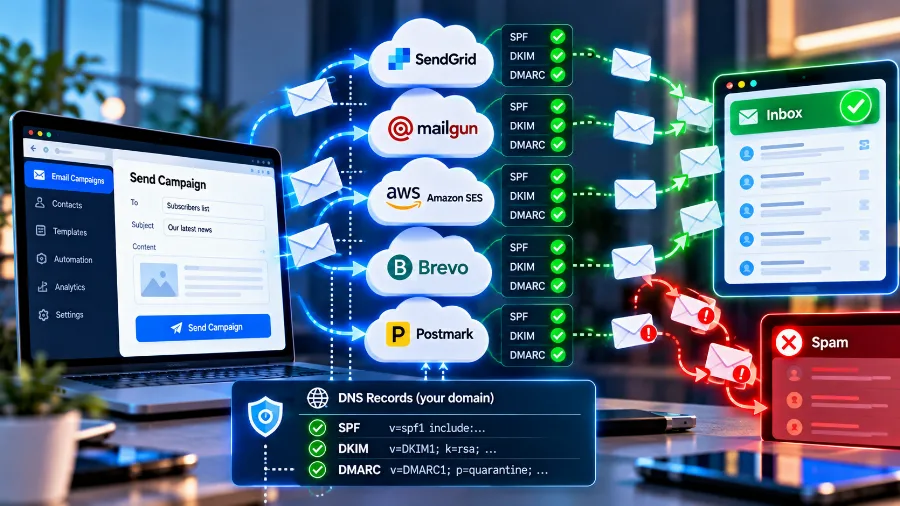
That's why, with every new service that will send email in your name, the first job is to add it to the records. If you send bulk campaigns, consider sending them from a separate subdomain, such as news.company.com. That way, any complaints about your newsletters won't harm the reputation of your main domain. You can see how this works in our article on what a subdomain is.
Other reasons emails end up in spam
Sometimes all three records are fine and your emails still don't reach the inbox. In that case, the cause is usually reputation or the messages themselves.
- The server is on a blacklist. If spam has been sent from the same server or IP address, it can end up on public blacklists, such as those run by Spamhaus, that mail systems monitor. Checking is free and takes seconds.
- There's no reverse DNS record. If you send from your own VPS, the IP address needs a reverse record that points to a name connected to your domain. Without it, many systems reject the email outright.
- A sudden jump in sending volume. A new domain that suddenly sends thousands of emails looks suspicious. Increase the volume gradually.
- The content raises suspicion. An email that's just one big image, an email with lots of links, or one with an archive attached from an unknown sender easily gets caught by filters.
- There's no unsubscribe link. With newsletters, recipients who can't unsubscribe easily click "Spam" instead, and that harms every email you send afterwards.
- The website or mailbox has been compromised. An infected website can send thousands of spam emails from the server without your knowledge. If your reputation suddenly collapses, check whether your site has been hacked. You'll find out how to tell and what to do in our article on a hacked website.
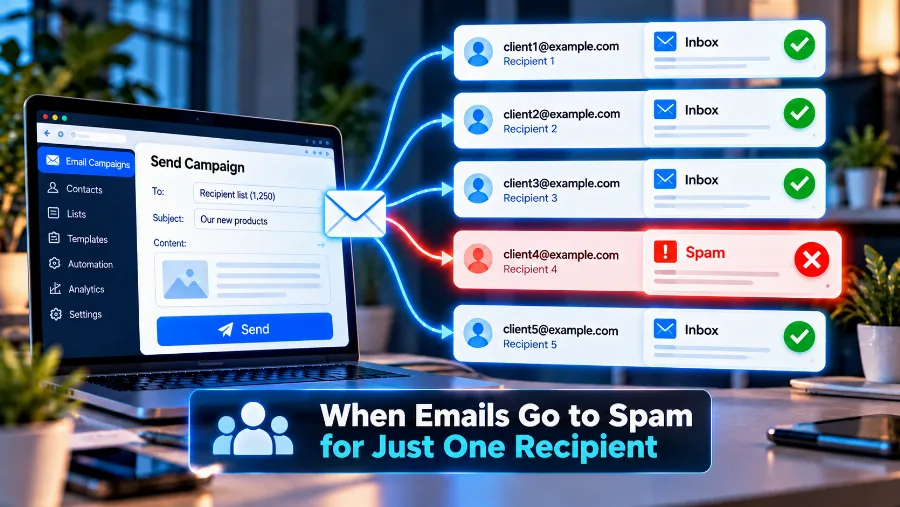
When emails go to spam with just one recipient
If the problem only affects a particular customer or company, the cause often lies in their filters rather than in your email. Some companies use strict corporate systems that check messages by their own rules.
In that case, ask the recipient to find the message in their spam folder and mark it as not spam. Better still, they can add your address to their list of trusted senders. If you can reach someone in their IT department, they can see the exact reason in the mail server's logs. That information often saves hours of guesswork.
Mistakes to avoid
- Two SPF records on one domain. Instead of adding a second record, extend the existing one. Two records mean a failed check.
- Too many includes in SPF. More than ten DNS lookups cause an error. Remove services you no longer use.
- DMARC with reject from day one. If a legitimate service isn't covered, its emails will be rejected and you may not find out for a long time.
- A forgotten service. New invoicing software or a new online shop sending email without being added to the records.
- Unread reports. DMARC reports show who is sending email in your name. If nobody reads them, you lose the most valuable information.
- No protection for domains that don't send email. If you have a domain just for a website, add SPF with
-alland DMARC with reject, so nobody can send email in its name.
Frequently asked questions
Will my emails stop going to spam once I set up SPF, DKIM and DMARC?
The records remove the most common cause, but they don't guarantee the inbox. Your domain's reputation, the content of your emails and how recipients react all matter too.
Do I need all three records if I only send a few emails?
Yes. The big mail systems require at least SPF or DKIM from all senders, and emails with all three records earn more trust regardless of volume.
Can I add the records myself?
Yes, if you have access to your domain's DNS settings. Adding a TXT record takes a minute. The harder part is collecting the exact values from every service that sends email.
What do ~all and -all mean in SPF?
Both apply to servers that aren't on the list. With ~all, email from them is treated as suspicious, while with -all it should be rejected. Most domains start with ~all.
How long does it take for the change to take effect?
Usually within an hour, and sometimes up to 24 hours, while the new records propagate through DNS.
Why do my emails only go to spam in Outlook?
Every mail system has its own filters and its own way of assessing sender reputation. Check the original of the message there and see whether all three checks pass. If they do, the cause is probably reputation or content.
Conclusion
Most emails that go to spam aren't spam. The domain simply hasn't proved that they really come from it. SPF says which servers are allowed to send in your name, DKIM signs every message, and DMARC ties the two together and says what should happen if a check fails. Set up all three records, cover every service that sends email, and tighten DMARC gradually. After that, look after your reputation: clean lists, normal content and a secure website.
Looking for hosting with business email included? Choose a plan and set up SPF, DKIM and DMARC once for your whole domain.