
Website backup: how and how often to back up your site
What a website backup is, what it should include, how often to back up, the 3-2-1 rule, where to keep backups and how to restore your site.

Most website owners only think about backups when they need one: after a hack, after a failed update, or after someone accidentally deletes an important page. By then it's too late to make one. If there's no backup, months or years of work can disappear in minutes.
In this article, you'll find out what a website backup is, what it should contain, what types there are, how often to back up your site and where to keep the copies. You'll also see how to make and restore a backup manually, how to check that your backups actually work and which mistakes turn a backup into a useless file.
In short
- A website backup is a complete copy of the files and the database from which you can bring the site back to a working state.
- How often you back up depends on how often the site changes: an online shop needs a daily backup, while a simple business site can manage with a weekly one.
- Follow the 3-2-1 rule: three copies, on two different types of storage, one of them away from the server.
- Keep backups for at least 30 days, because hacks are often discovered weeks later.
- A backup you've never tried to restore isn't a reliable backup. Test them regularly.
What is a website backup
A website backup is a complete copy of everything your site is made of, taken at a specific moment. From it, you can bring the site back to exactly the state it was in at that time if something goes wrong.
There are many reasons you might need one. The site may be hacked and infected with malicious code. A plugin update may break it. A member of staff may delete a page or products. The server may have a hardware fault. In all of these cases, a backup is the difference between a few minutes' work and losing everything.

If your site has already been compromised, a clean copy from before the attack is the fastest way to get it back. You'll find out how to tell whether a site has been hacked and what to do in our article on a hacked website.
What a backup should include
A complete website backup has two main parts and a few extra ones that are often forgotten:
- The files. The site's code, the theme, the plugins, and uploaded images and documents. With WordPress, this is the whole site folder, including wp-content.
- The database. The text of pages and posts, orders, customers, comments and settings. Without it, the files are an empty shell.
- Configuration files. For example, wp-config.php or .env, which hold the database connection details and other settings.
- Email. If your business email is on the same hosting, the messages need to be kept too.
- A note of your settings. DNS records, the PHP version and any special server settings. They aren't in the backup, but without them restoring to a new server takes much longer.
The most common mistake is backing up only the files. If the database is missing, all your posts, orders and users are lost, even though the site technically "opens".
Types of backup: full, incremental and differential
Backups differ in what they contain and how much space they take up. A full backup includes everything. An incremental backup contains only the changes since the last backup of any kind. A differential backup contains the changes since the last full backup.
| Type | What it contains | Space | Speed to create | Speed to restore |
|---|---|---|---|---|
| Full | All files and the whole database | Most | Slowest | Fastest, from a single file |
| Incremental | Changes since the last backup | Least | Fastest | Slowest, every part is needed |
| Differential | Changes since the last full backup | Medium, grows over time | Medium | Medium, two parts are needed |
In practice, good systems combine the types. For example, a full backup once a week and incremental backups every day. That way you save space and time, and you can always bring the site back to a specific day.
How often to back up your website
How often to back up your website depends on one question: how much work can you afford to lose? If backups run once a week and the site goes down on a Friday, you lose everything done since Monday.

- Online shop. At least once a day, and with lots of orders, several times a day for the database. Every lost order is a lost customer.
- Blog or news site. Daily if you publish often. Weekly if you post rarely.
- Business or brochure site. Once a week is enough if the content rarely changes.
- Before every major change. Regardless of the schedule, make a manual backup before an update, a theme change, a migration or a new plugin.
Updates are one of the most common reasons for a restore. You can see how to do them safely, and why a backup is the first step, in our article on how to update WordPress.
Backing up an online shop
An online shop needs a more careful approach, because its database changes all the time. At any minute an order can come in, a customer can register or stock levels can change. If you restore a backup from 12 hours ago, you lose every order from that period and then have to rebuild them by hand from emails and payments.
That's why, for a shop, it's best to back up the database more often than the files, for example every few hours, with the files once a day. Before sales, campaigns and big catalogue changes, make a manual backup too. When restoring, first check which orders came in after the last backup, so you don't lose a single one.
The 3-2-1 backup rule
The 3-2-1 rule is a simple scheme that protects your data even in a serious incident. Keep three copies of your data, on two different types of storage, with one of them in a different physical location.
For a website, it looks like this. The first copy is the live site itself. The second is your host's automatic backup, on a separate server. The third is a copy you download regularly to your computer or upload to cloud storage with another provider. If the server fails or the account is compromised, the third copy stays untouched.

A stricter version is the 3-2-1-1-0 rule. It adds one copy that can't be changed or deleted, and zero errors when the backups are checked. This matters especially against ransomware, which encrypts any backups it can reach.
Where to keep your backups
The most important rule is simple: don't keep your only backup on the same server as your site. If the server fails or is hacked, you lose both the site and the backup at once.
- A separate server at your host. Convenient and automatic, and restoring is usually done from the control panel.
- Cloud storage. Services such as Google Drive, Dropbox or S3-compatible storage. Many backup plugins upload copies there automatically.
- A local copy. On your computer or an external drive. Useful as a third copy, but don't forget to keep it up to date.
Backups contain everything from your site, including customers' personal data and the database password. So keep them encrypted, or at least password-protected, and never leave them in a public folder from which they could be downloaded.
Automatic backups from your host
Most hosting providers make automatic backups, but the terms vary a lot. Before you rely on them, check a few things:
- How often they run and how many days back they're kept.
- Whether they're on a separate server or the same one.
- Whether they include both the database and email.
- Whether you can restore them yourself from the panel or have to contact support.
- Whether you can restore a single file or a single database without restoring the whole account.
Your host's automatic backups are a good foundation, but they shouldn't be the only ones. If the account is suspended or the provider has a serious problem, you'll want a copy of your own.
It's a good idea to download a full backup from the panel once a month and keep it yourself or in the cloud. It takes a few minutes and gives you independence: if you ever decide to change hosting, you'll also have everything you need for the move ready to go.
How to back up a website manually
A manual website backup is made in one of three ways, depending on what access you have.
Through your hosting control panel
Most control panels have a backups section. Choose a full backup or separate backups of the files and the database, wait for it to be created and download it to your computer. This is the easiest method and needs no technical knowledge.
With a WordPress plugin
Plugins such as UpdraftPlus, Duplicator and BackWPup back up the files and the database and can upload them automatically to cloud storage on a schedule. Set them up once and check that the backups really arrive where they should.
Over SSH
If you have SSH access, a manual backup takes two commands. The first archives the files, the second exports the database:
- Archive the files. The command
tar -czf site-2026-10-19.tar.gz site_foldercreates a compressed archive of the whole folder. - Export the database. The command
mysqldump -u username -p database_name > db-2026-10-19.sqlwrites the database to a single file. - Download both files off the server. Over SFTP or another transfer method, so they don't stay only on the same machine.
You can see how to connect to the server over SSH in our article on what SSH is.
How to restore a website from a backup
Restoring a website from a backup follows the reverse order of creating one. Here are the main steps:
- Choose the right backup. If the site was hacked, take a copy from before the attack, not the latest one. The latest may already contain the malicious code.
- Back up the current state too. Even if it's broken, you may need it for analysis or for data missing from the older copy.
- Restore the files. Through the control panel, the plugin or with the
tar -xzfcommand on the server. - Restore the database. Through phpMyAdmin, the plugin or with the command
mysql -u username -p database_name < db.sql. - Check the site. The home page, forms, orders and logging in to the dashboard.
- Fix the cause. If the problem was a hack, change the passwords and update the software straight away. Otherwise the site will be hacked again.

The same steps are used when moving a site to new hosting. We describe them in detail in our article on how to migrate a website to a new host.
Check that your backups actually work
A backup that has never been restored is only a hope. It happens that the archive is corrupted, the database is empty, or backups stopped months ago without anyone noticing.
At least once every three months, try restoring a backup somewhere separate: on a subdomain, in a staging environment or on a local computer. Check that the site opens and that the latest posts and orders are there. Also check the dates of the most recent backups. If the latest one is weeks old, something in the schedule isn't working.
How long to keep backups
Keep website backups for at least 30 days. The reason is that hacks are often discovered weeks after the attack itself. If you only keep backups for the last week, all of them may already contain the malicious code.
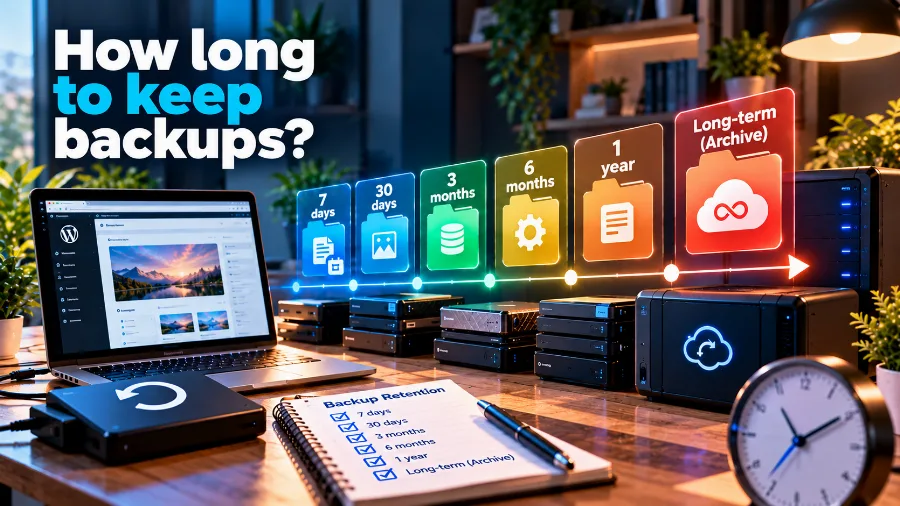
A good scheme is to keep daily backups for two weeks, weekly ones for one or two months and monthly ones for several months. That way you can bring the site back to yesterday or to a state from many weeks ago, without the backups taking up too much space.
Mistakes to avoid
- A backup only on the same server. If the server fails or is hacked, you lose the backup too.
- A backup without the database. The site opens, but without posts, products and orders.
- Backups that are never tested. You find out they don't work exactly when you need them.
- Keeping them too briefly. Every backup was made after the attack and contains the malicious code.
- Backups in a public folder. Anyone who guesses the file name can download your whole database.
- Relying only on your host. If the account is suspended, you have no copy of your own.
Frequently asked questions
Is a backup the same as a backup copy?
Yes. Both terms mean a copy of your data that you can restore from if the original is lost or damaged.
How much space does a website backup take up?
Roughly as much as the site itself. A compressed backup is usually smaller, but images and videos barely compress, so they determine the size.
Are my host's automatic backups enough?
They're a good foundation, but it's safer to have a copy of your own somewhere else too, following the 3-2-1 rule.
Can I restore just one page or one file?
Yes, if your backup system allows it. Many control panels and plugins let you restore a single file or just the database.
Should I back up before updating?
Yes. Before every update to the core, the theme or a major plugin, make a full backup of the files and the database.
Should I encrypt my backups?
It's advisable. Backups contain the database password and your customers' personal data, so they need to be protected at least as well as the site itself.
What should I do if I don't have a single backup?
Ask your host whether it keeps its own backups, even if they aren't visible in the panel. Also check archives such as the Wayback Machine for the text. Once you've recovered what you can, set up automatic backups straight away.
How long does it take to restore a website?
For a small site restored from the control panel, usually anywhere from a few minutes to half an hour. A large site with lots of images may take longer.
Conclusion
A website backup is the cheapest insurance you can have. Back up as often as your site changes, keep copies in at least two places, one of them away from the server, and keep them for at least 30 days. Most importantly, check from time to time that your backups actually restore. Then a hack, a broken update or a deleted page will cost you minutes, not months of work.
Want your backups to take care of themselves? Our shared hosting includes nightly backups on a separate server that you can restore yourself from the panel.