How to update WordPress safely
How to update WordPress safely: what gets updated, backups and staging, the steps, automatic updates, PHP and what to do if your site breaks.
WordPress reminds you about new versions almost every week: of the core, the plugins, the theme, the translations. Many site owners put off updating because they're afraid something will break. Others click "Update all" without thinking and sometimes really do end up with a white screen instead of a website.
In this article, you'll find out why updating WordPress matters, what exactly gets updated, how to do it safely step by step and what to do if something goes wrong. You'll also find fixes for the most common errors: when WordPress asks for FTP details, when it can't create a directory and when the site gets stuck in maintenance mode.
In short
- Updating WordPress closes security holes and keeps the core, plugins, theme and PHP compatible with each other.
- The safe order is: backup, test on a copy of the site, update one thing at a time and check after each.
- Minor core versions update automatically. You can leave plugins and themes on auto-update if they're reliable.
- If the site breaks, most problems are solved by deleting the .maintenance file, deactivating a plugin or restoring the backup.
- Check for updates at least once a week, and install security updates straight away.
Why WordPress updates matter
WordPress updates matter mainly for security. Most hacked WordPress sites aren't breached through the core itself, but through an old plugin or theme with a known vulnerability. As soon as a vulnerability is published, automated bots start looking for sites that haven't been updated yet.
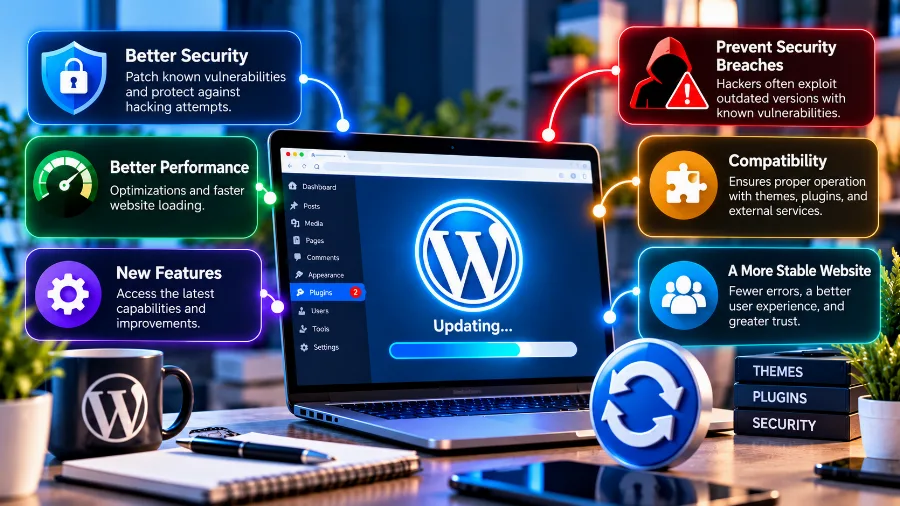
The second reason is compatibility. The core, the plugins, the theme and the PHP version on the server all have to work together. If you update one and leave another years behind, sooner or later an error will appear. The third reason is speed: newer versions often run faster and use fewer resources.
If your site has already been compromised, updating is one of the first steps after the clean-up. You can see how to tell whether a site has been hacked and what to do in our article on a hacked website.
What gets updated in WordPress
A WordPress site is made up of several parts, and each one gets its own updates:
- The core. WordPress itself: the dashboard, the editor, the user system and everything that works independently of the theme and plugins.
- Plugins. The add-ons that provide extra features: forms, an online shop, caching, SEO, security.
- The theme. It controls how the site looks. If you've made changes directly in the theme's files, an update will wipe them out. That's why changes belong in a child theme.
- Translations. The translation of the dashboard and of plugins into your language is updated separately.
- PHP. The language WordPress runs on. It isn't updated from the dashboard, but from your hosting settings.
The different parts carry different levels of risk. Here's how that looks in practice:
| Part | How often new versions come out | Risk when updating | Automatic updates |
|---|---|---|---|
| Core, minor version | Several times a year | Low | On by default |
| Core, major version | Two or three times a year | Medium | Optional |
| Plugins | Often, sometimes every week | Medium, depends on the plugin | Optional for each plugin |
| Theme | Several times a year | Low to medium | Optional |
| PHP | A new version once a year | Medium to high | No, through your host |
Minor and major WordPress versions
WordPress versions differ by the number after the dot. A major version is, for example, 6.7 or 6.8: it brings new features and changes to the editor. A minor version is, for example, 6.8.1: it fixes bugs and closes security holes without changing how the site works.
Since version 3.7, WordPress has installed minor versions automatically, without waiting for the administrator. It's a sensible setting and there's no reason to turn it off. Major versions require your confirmation by default, but since version 5.6 you can switch on automatic updates for them too, from the "Dashboard" → "Updates" screen.
It's good practice not to install a major version on day one. Wait a week or two until the first maintenance release comes out and plugin authors confirm that they're compatible.
Before a major update, also read the release notes. They tell you what's changing, which features are being removed and whether there are changes that affect your theme or plugins. The same applies to big plugins: when their version number jumps by a whole number, for example from 4.9 to 5.0, the changes are usually significant, and it's better to test them on a copy first.
Before you update: backup and checks
The most important rule is simple: before any significant update, make a full backup. It has to include both the files and the database. A copy of the files alone won't help if the update changes the database.
Many hosts make automatic backups every day. That's good protection, but check how far back the backups go and how they're restored before you need them. If you don't have such a service, use a backup plugin and keep the copy off the server.
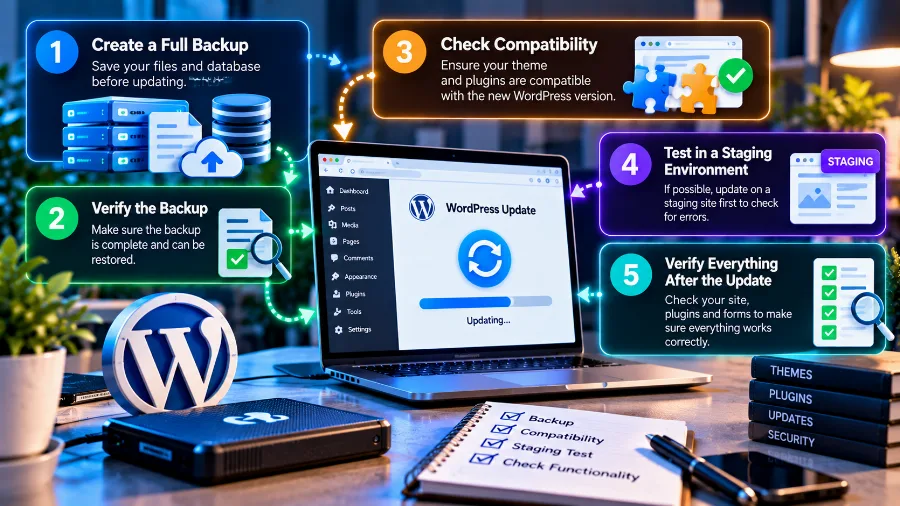
Apart from the backup, check a few more things:
- Whether all your plugins support the new WordPress version. This is shown on the plugin's page in the directory.
- Whether your premium plugins and themes have an active licence. Without one, they usually don't receive updates.
- Whether you have access to the site's files through your host's file manager, FTP or SSH. If the site goes down, there's no way to fix it without that access.
Staging: test on a copy first
Staging is a copy of your site where you test updates before applying them to the live site. If something breaks there, visitors see nothing, and you have time to find the cause.
Many WordPress hosting plans create such a copy with one click and then push the changes back to the live site. If your host doesn't offer this, you can make a copy on a subdomain with a migration plugin. For a small site with a few plugins, staging isn't essential. For an online shop or a site that brings in revenue, it's worth every minute.
How to update WordPress safely, step by step
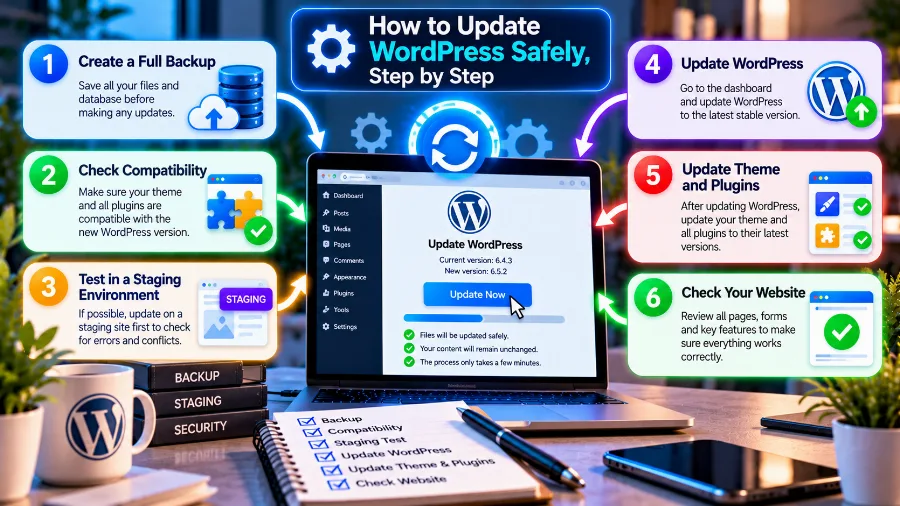
A safe WordPress update always follows the same order. Here it is:
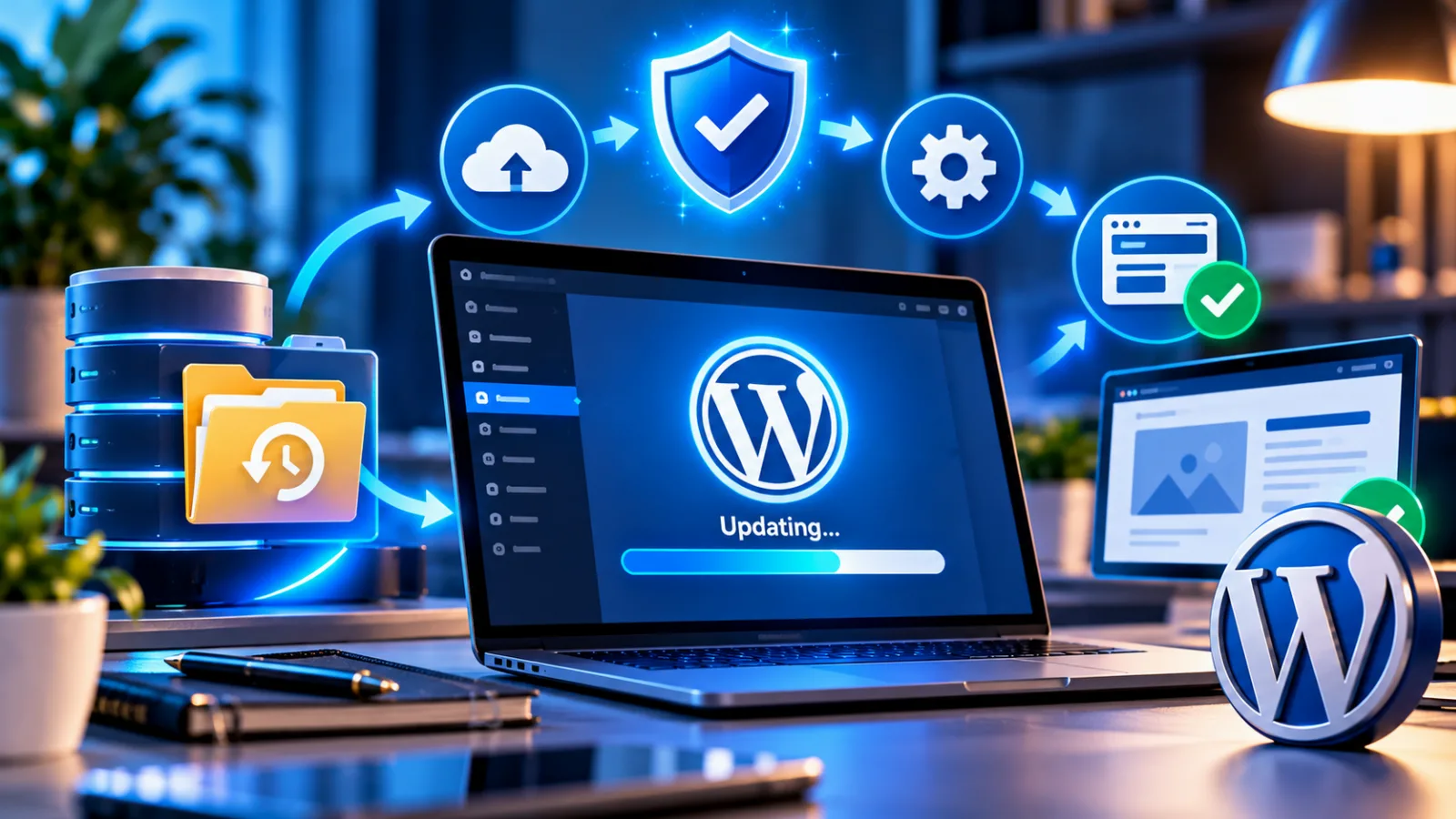
- Make a backup. Files and database, with the date in the name so you know which one is the latest.
- Test on staging if you have it. Go through all the following steps there first.
- Update plugins one at a time. After each one, open the site and check the main pages. If you update them all at once and something breaks, you won't know which plugin is to blame.
- Update the theme. If you use a child theme, you only update the parent.
- Update the core. From "Dashboard" → "Updates". With a major version, WordPress may also ask to update the database. Confirm it.
- Update translations. They're on the same screen, at the bottom.
- Check the site. The home page, contact forms, the cart and checkout if you run a shop, and logging in to the dashboard.
- Clear the cache. Both your caching plugin's cache and your host's, if there is one. Otherwise visitors may see an old version.
If you have SSH access, you can do the same with WP-CLI, the command-line tool for managing WordPress. The commands wp plugin update --all, wp theme update --all and wp core update update the plugins, themes and core, and wp core update-db updates the database. You can see how to connect to the server in our article on what SSH is.
Automatic updates: when to switch them on
Automatic updates are convenient, but they aren't right for every plugin. Since version 5.5, WordPress lets you switch them on individually for each plugin and theme from the "Automatic updates" column in the plugin list.
Switch them on for small, well-maintained plugins with lots of users that rarely break anything. Leave the big plugins your site depends on to manual updates: the online shop, the page builder, the multilingual plugin. With these, a single incompatibility can stop orders.
WordPress also protects the site during automatic updates. Since version 6.6, it checks the site after a plugin is updated automatically, and if a fatal error appears, it restores the previous version. That reduces the risk, but it doesn't replace a backup.
Updating your PHP version
PHP is the language WordPress runs on, and its version is changed from your hosting control panel, not from the site's dashboard. Old versions such as PHP 7.4 and PHP 8.0 stopped receiving security fixes long ago. Newer versions are faster and safer.
Changing PHP is riskier than an ordinary plugin update, because old plugins and themes may not work with the new version. So first update all your plugins and the theme, then switch PHP on staging, or at a time when you can quickly switch back. If the site shows an error, switching back takes seconds in most control panels.
The PHP version also affects how fast your site is. You'll find more about what else slows a site down and how to speed it up in our article on website speed.
What to do if your site breaks after an update
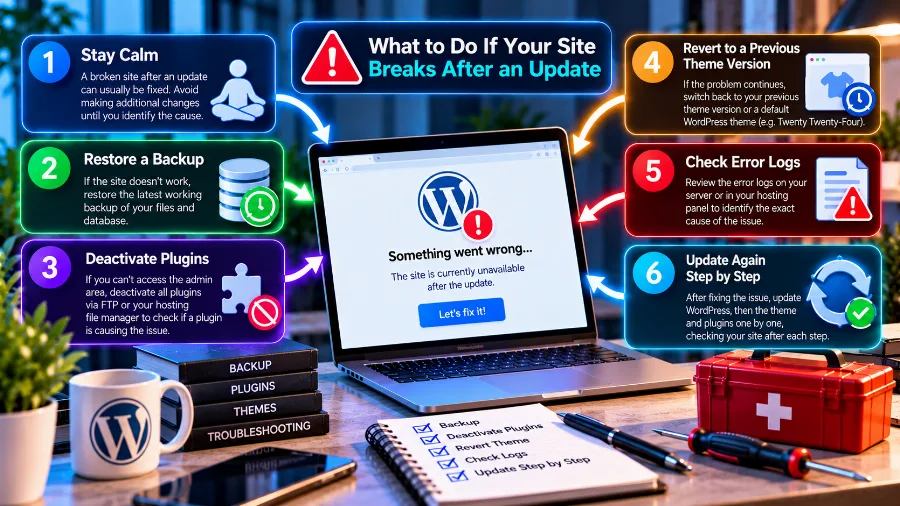
If your site breaks after an update, the cause is almost always a plugin or theme that isn't compatible with the new version. Here are the most common situations and how to fix them:
The site shows "Briefly unavailable for scheduled maintenance"
During an update, WordPress creates a temporary file called .maintenance in the site's root folder. If the update is interrupted, the file stays and the site keeps showing this message. Delete it through the file manager, FTP or SSH, and the site will come back.
A white screen or "There has been a critical error on this website"
Since version 5.2, WordPress has had a recovery mode. When a fatal error occurs, it emails the administrator a special link that lets you log in to the dashboard and deactivate the plugin causing the error. If the email doesn't arrive, rename the suspect plugin's folder in wp-content/plugins. WordPress will deactivate it automatically.
How to revert a WordPress update
The safest way to revert an update is to restore the backup you made before it. If the problem is a single plugin, you can install its previous version. On the plugin's page in the WordPress directory, the "Advanced View" section has a list of older versions. With WP-CLI, you do it with the command wp plugin install plugin-name --version=number --force.
Once you've restored the old version, turn off automatic updates for that plugin until the author fixes the problem.
Common WordPress update errors
WordPress asks for FTP details when updating
WordPress asks for FTP details when it isn't allowed to write files directly to the server. The cause is almost always that the site's files belong to a different user from the one the web server runs as. The proper fix is to correct the file ownership on the hosting account. As a temporary fix, some people add the line define( 'FS_METHOD', 'direct' ); to the wp-config.php file, but this only works if the file permissions allow writing.
"Update failed: Could not create directory"
This error means WordPress can't create a folder for the new files. There are two causes: wrong folder permissions or a full hosting account. The standard permissions are 755 for folders and 644 for files. Also check how much free space your account has.
The update stops halfway
If an update is interrupted because it ran out of time or memory, try it again after a few minutes. If this happens regularly, your host's memory and execution time limits are too low for your site.
The site looks different after an update
If menus, fonts or the layout look broken but the site is working, the cause is most often the cache. Clear your caching plugin's cache, your host's cache and your browser's cache. If the problem remains, the theme is probably not compatible with the new version of a plugin. Check for a theme update or contact its author.
How often to update WordPress
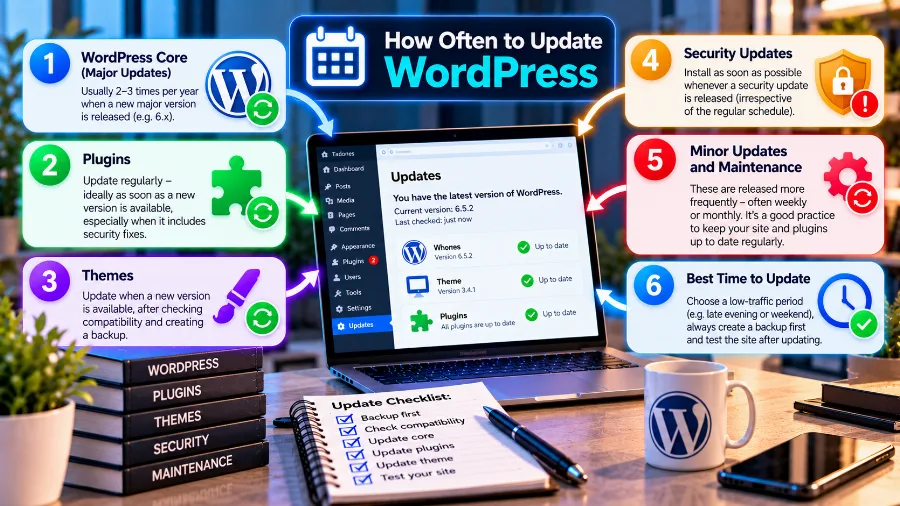
Check for updates at least once a week. Install security updates for plugins and the core straight away, because attacks on published vulnerabilities start within days. Wait a week or two before installing major core versions.
If you don't have time to keep track of everything yourself, your host can take on part of the work. WordPress hosting often includes automatic core updates, daily backups and staging, which covers the riskiest steps.
Frequently asked questions
Is it safe to click "Update all"?
For a small site with a backup, it's usually safe. On a larger site, update plugins one at a time so you know which one is to blame if something breaks.
Can a WordPress update delete my content?
No. Your posts, pages and images are in the database and the uploads folder, and they aren't affected. Only changes made directly in theme or plugin files get wiped.
How do I stop WordPress update emails?
With a little code or a plugin. WordPress uses the filters auto_core_update_send_email, auto_plugin_update_send_email and auto_theme_update_send_email. When they return false, the emails stop.
Do I need to update plugins I don't use?
It's better to delete them. A deactivated plugin stays on the server, and if it has a vulnerability, it can still be exploited.
What should I do if a plugin hasn't been updated in years?
Look for a replacement. A plugin with no updates for more than a year is a security risk and may stop working with new versions of WordPress and PHP.
How long does a WordPress update take?
The update itself takes anywhere from a few seconds to a minute. Including the backup and checking the site afterwards, allow 15 to 30 minutes for a small site.
Can I update WordPress without the dashboard?
Yes. Over SSH with WP-CLI, or manually by uploading the new files via FTP without touching the wp-content folder and the wp-config.php file.
Conclusion
Updating WordPress isn't something to be afraid of if you do it in the right order. Make a backup, test on a copy of the site if you can, update one thing at a time and check after each. Let minor versions and reliable plugins update themselves, and handle the big changes manually. That way your site stays fast, compatible and secure.
Want WordPress that's easier to maintain? WordPress hosting is set up for WordPress sites and saves you part of the routine work.