Website speed: how to test it and make your site faster
How to test your website speed with PageSpeed Insights, what LCP, INP and CLS mean, and which changes actually make a site faster, including WordPress.

You open your website on your phone and wait. The white screen stays for a second, two, three. Then the text appears, but the buttons jump down as the images load. You can afford to wait, because it's your website. Your visitor won't. They'll tap "back" and open the next result on Google.
Website speed stopped being a technical detail a long time ago. It decides whether someone reads your offer, sends an enquiry or completes an order. In this article you'll learn how to test your website speed, how to read the results without panicking over red numbers, and which changes actually help. We've also gathered practical steps for WordPress separately, because it powers a large share of the websites on the internet.
In short
- Website speed is measured with several metrics: how quickly the server responds, when the main content appears, how quickly the page reacts to an action and whether elements jump around.
- The easiest way to test it is Google's free PageSpeed Insights. Look at the metrics, not just the score from 0 to 100.
- The most common culprits are heavy images, no caching, too many plugins and third-party scripts.
- If the server is slow to respond before the page even starts loading, no optimisation inside the website will make up for weak hosting.
What website speed actually means
When we say a website is fast or slow, we usually mean how it feels. Behind that feeling, though, there are several separate moments, and each is measured on its own. A website can show its text instantly but freeze when you tap the menu. Or the opposite: everything works smoothly, but the first few seconds are a blank screen.

Google brings the most important of these moments together in what it calls Core Web Vitals. We'll add server response time to them, because that's where everything starts:
- TTFB (Time to First Byte) shows how much time passes between the request and the first byte the server sends back. This is purely the time taken by the hosting and the website's code.
- LCP (Largest Contentful Paint) shows when the largest visible element appears, usually the main image or the heading. For the visitor, this is the moment the page "has loaded".
- INP (Interaction to Next Paint) shows how quickly the page responds when you tap a button, open a menu or type in a form. In 2024 this metric replaced the older FID.
- CLS (Cumulative Layout Shift) shows how much elements jump around while the page loads. Anyone who has tapped the wrong button because the text suddenly moved knows why this matters.
For each metric, Google sets a "good" threshold and a "poor" threshold. Between them lies the zone that needs improvement:
| Metric | What it measures | Good | Needs improvement | Poor |
|---|---|---|---|---|
| TTFB | Server response | up to 0.8 s | 0.8–1.8 s | over 1.8 s |
| LCP | Main content appearing | up to 2.5 s | 2.5–4 s | over 4 s |
| INP | Response to an action | up to 200 ms | 200–500 ms | over 500 ms |
| CLS | Elements jumping around | up to 0.1 | 0.1–0.25 | over 0.25 |
It's worth knowing that Google assesses real visits, not a single test. For a page to pass, at least three out of every four visits need to fall in the "good" zone.
Why website speed matters
The first reason is people. A slow page loses visitors before they've even seen what you offer, especially on mobile data. Every second of waiting lowers the chance that someone stays, looks around and buys. If you pay for ads, a slow website literally burns part of the budget: you pay for the click, and the person leaves before the page has opened.
The second reason is Google. Core Web Vitals are among the signals the search engine uses to judge how user-friendly a page is. It's worth being honest here, though: speed isn't a magic button for first place. Useful, relevant content always counts for more. Speed decides when two pages are similarly good, and a very slow website can lose rankings it would otherwise deserve.
The third reason is discussed less often: a slow website is usually a sign of an overloaded server. The same website may not cope with a surge of visitors during a campaign or a sale. Speeding it up often solves that problem too.
How to test your website speed
The most convenient tool is Google's PageSpeed Insights. It's free, needs no sign-up and shows exactly the metrics the search engine uses. You enter the page address and after about a minute you get the result, separately for mobile and desktop.

A few rules make the test useful rather than misleading:
- Start with mobile. Google assesses a website mainly through its mobile version, and most visitors come from a phone anyway. The desktop result is almost always better and easily gives a false sense of security.
- Test more than the home page. Check inner pages too: a product, a category, an article, the contact page. The home page is often polished, while product pages are heavy.
- Run the test two or three times. The first load is sometimes slower because the cache isn't ready yet. Look at the typical result, not the best or the worst.
- Compare before and after. Write down the results before you change anything. Otherwise you won't know which change helped and which one did harm.
If your website is added to Google Search Console, open the Core Web Vitals report as well. Instead of individual tests, it shows groups of pages with problems, collected from real visits. It's the most honest answer to the question of whether your website is fast.
How to read your PageSpeed Insights results
The results page has two parts, and many people mix them up. The top part comes from real Chrome visitors over the last 28 days. The bottom part is a lab test that simulates a single load on a mid-range phone with a slower connection.
The real data shows how the website behaves for people. The lab test shows why: it gives the score from 0 to 100 and a list of specific recommendations. If your website is new or has few visits, the top part may be missing. Then you rely on the lab test, bearing in mind that it's stricter than reality.
Don't chase a score of 100 at any cost. Visitors rarely notice the difference between 85 and 100, and chasing it can push you to remove things that make money, such as live chat or analytics. The goal is to get the metrics into the green zone. If LCP, INP and CLS are good, the website is fast, whatever number sits at the top.
The recommendations in the bottom part are ordered by expected benefit. Start from the top and don't worry if you don't understand every one of them. The next sections cover the most common ones and what's behind them.
The most common reasons for a slow website
In almost every slow website, the cause is one or more of the following:
- Heavy images. A photo straight from a camera or phone can be 5–8 MB, while it's shown on screen at a size for which 150 KB is enough.
- No caching. Every time the page is opened, the server builds it from scratch, with all the database queries.
- Too many plugins or a heavy theme. Each one adds its own files and queries, even on pages where it isn't used at all.
- Third-party scripts. Chat widgets, ad pixels, embedded maps and videos load from other people's servers, which you have no control over.
- A slow server. Overloaded shared hosting, an old PHP version or a server far from your visitors.
The good news is that the first three are fixed inside the website itself, often in a single afternoon. Here's how.
Images: the easiest win
If you have to start somewhere, start with images. On most websites they make up more than half of the page weight, and they can almost always be made several times lighter without the eye noticing any difference.
First, reduce the dimensions. If the main image is displayed 1,200 pixels wide, there's no point uploading a 6,000-pixel file. The browser will still download the whole file and then shrink it. Second, use a modern format. WebP is about a third lighter than JPEG at the same quality and is supported by all mainstream browsers today. AVIF is lighter still, but takes longer to process.
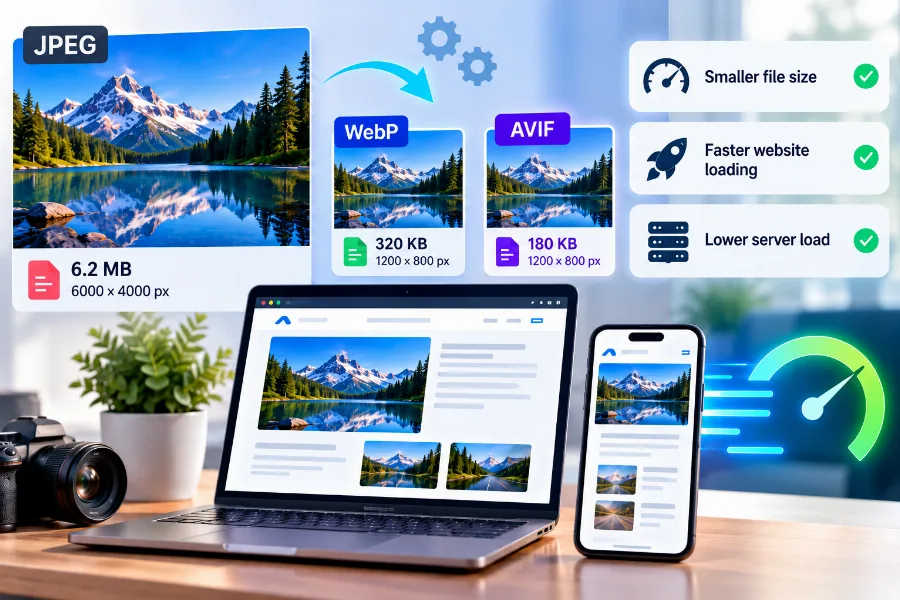
Third, let the browser load images further down the page only when the visitor scrolls to them. This is called lazy loading. There's one catch: the main image at the top of the screen shouldn't be deferred. It's most often the element LCP is measured by, and it needs to start loading straight away.
Finally, always set the width and height of your images. That way the browser reserves space for them before they've loaded, and the text doesn't jump. It's the easiest way to improve CLS.
Caching: stop building pages from scratch
Imagine a restaurant where the chef starts making the sauce from scratch for every order. That's how a website without a cache works: every time a page is opened, the server runs the code, queries the database and builds the page again. Caching keeps a ready-made copy and serves it straight away to the next visitor.
There are several levels of cache, and it helps to know the difference:
- Page cache stores the finished HTML. It's the biggest win and brings TTFB down the most.
- Browser cache tells the browser to keep images, stylesheets and scripts. On the second visit they aren't downloaded again.
- Object cache keeps the results of database queries in memory. It helps online shops and websites with a lot of dynamic content the most.
Online shops have one particularity: the cart, the account and the checkout mustn't be cached, because they're different for every customer. Good caching solutions exclude them automatically, but after setting things up, always place a test order.
How to speed up a WordPress site
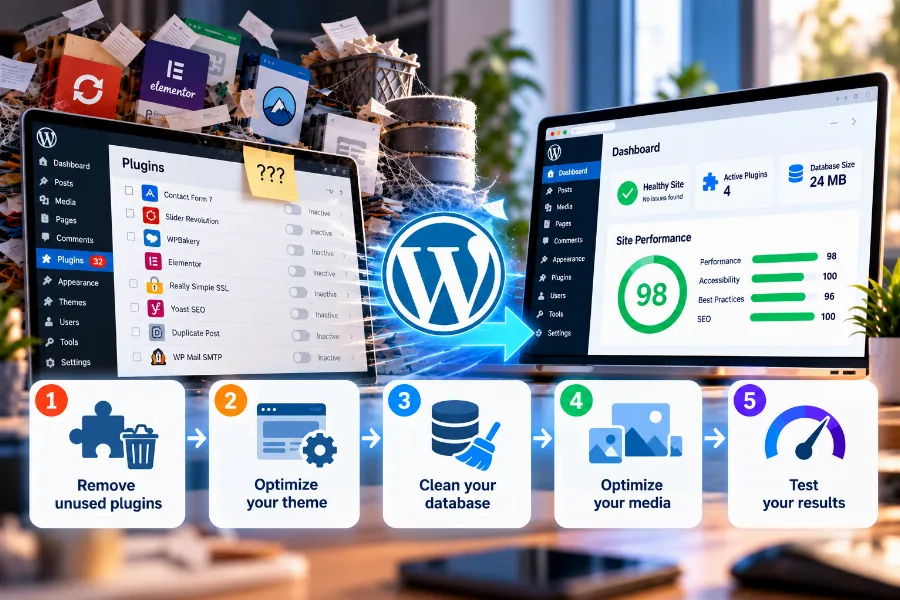
WordPress isn't slow in itself. It becomes slow because of what builds up in it over the years: plugins nobody remembers installing, a theme with dozens of features of which two are used, and a database full of unnecessary records. Here's the order to tackle things in.
1. Review your plugins
Open your plugin list and ask yourself about each one: "If I switched it off, would anyone notice?" Delete the inactive ones and those whose job is already done by another plugin or by the theme itself. The number isn't the problem; the weight is. Ten light plugins can put less load on the site than one badly written one. If you don't know which one is slowing the website down, the free Query Monitor plugin shows how many queries each one runs and how much time they take.
2. Choose a lightweight theme
Multipurpose themes and heavy page builders load a lot of code on every page, even if you only use a small part of what they can do. If you're building a new website or reworking the old one, choose a lightweight theme and the WordPress block editor. If you're changing the theme on a live website, do it in a staging environment first.
3. One caching plugin, not two
Install one caching plugin and configure it carefully. Two caches on top of each other don't make the website twice as fast; they lead to outdated versions of pages and errors that are hard to track down. If your hosting has server-level caching, use its plugin rather than another one.
4. Clean up the database
Over time WordPress accumulates old post revisions, deleted spam, temporary records from plugins and settings left behind by add-ons that were removed long ago. Some of these settings are loaded every time a page is opened. Cleaning them up with a suitable plugin can noticeably reduce response time. Make a backup first.
5. Update WordPress, plugins and PHP
Newer versions of PHP run WordPress faster than older ones. If your website still runs on PHP 7, moving to 8.3 or later often brings a noticeable speed-up without any other change. Check first that your theme and plugins are compatible, and after the switch, go through the main pages and forms.
Fonts, scripts and third-party services
This is where speed is often lost without anyone noticing. Every chat widget, ad pixel, embedded map, YouTube video or newsletter form pulls files from someone else's server. You have no control over how quickly it responds, and the browser sometimes holds back the page until it has downloaded them.
Go through the list and remove anything that doesn't bring real value. For the rest, consider whether it needs to load everywhere. The map is needed on the contact page, not on every article. A video can be shown as an image with a play button and load only when it's clicked.
Fonts weigh more than they seem to, as well. Limit yourself to two families and only the weights you actually use. If possible, host them on your own server instead of loading them from an external service. That way the browser has one connection fewer to open.
When the problem is your hosting
There's a quick way to tell whether the slowness comes from the website or from the server. Look at TTFB in PageSpeed Insights or in your browser's Network tab. If the server takes more than a second to respond before it has sent anything at all, the problem isn't the images or the fonts. They come later.
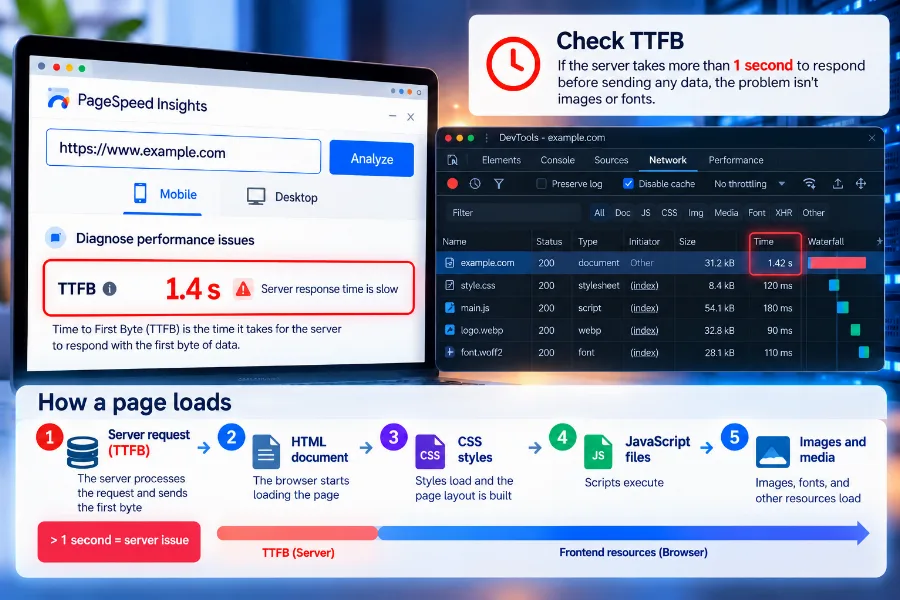
A high TTFB with caching switched on usually means an overloaded server, slow disks or an outdated environment. Shared hosting is shared quite literally: if a neighbouring website puts a heavy load on the machine, yours slows down too. A server far from your visitors adds more time, because every request has to travel there and back. Slow DNS adds a fraction of a second before the browser even knows where to go. You can read more about this in our article on what DNS is.
If your website runs on WordPress, the biggest difference comes from hosting configured specifically for WordPress, with server-level caching and an up-to-date PHP version. We explain in detail how to judge which hosting to choose and what to look out for in our article on how to choose WordPress hosting. And if your website has grown and a shared environment is no longer enough, the next step is a server of your own. See what a VPS is and when it makes sense.
CDN: when it makes sense
A CDN (Content Delivery Network) is a network of servers around the world that keep copies of your images, stylesheets and scripts. The visitor receives them from the server closest to them rather than from yours.
If your customers are mainly in one country and your website is on a server in that same country, a CDN rarely makes a big difference. The distance is short anyway. It makes sense if you have visitors from many countries, if your website has a lot of heavy images and videos, or if you expect big traffic peaks. A CDN then takes on a large part of the load, and your server only deals with what can't be cached.
Mistakes that make a website slower
Some of the most common mistakes come precisely from wanting to make the website faster:
- Three optimisation plugins at once. They fight each other, duplicate their work and sometimes break the design. One well-configured plugin is better than three.
- Combining and minifying every file in one go. Sometimes it helps, sometimes it breaks the menu or the cart. Turn settings on one at a time and check after each one.
- Testing on desktop only. The website looks fast on office broadband and a powerful laptop, while the customer is on a phone with a weaker signal.
- A slider with five huge images at the top. It looks impressive in the mock-up, but weighs as much as the rest of the page put together. One well-chosen image works better.
- Optimising once and forgetting about it. Every new piece of content, plugin or campaign can bring the problem back. Check your speed at least once a month and after every major change.
Frequently asked questions
What is a good page load time?
The main content should appear within 2.5 seconds, and the server should respond within 0.8 seconds. In practice, well-built websites open in about a second or two, even on a phone.
Does website speed affect Google rankings?
Yes, but it isn't the most important factor. Core Web Vitals are part of how Google assesses page experience. Content and relevance count for more, but between similar pages the faster one has the edge, and a very slow one can lose rankings.
Why does my PageSpeed Insights score change with every test?
The lab test depends on how loaded the server is at that moment, on the state of the cache and on the network between the test and the website. A difference of a few points is normal. Look at the average of several tests and at the real data at the top.
Do I need a caching plugin if my hosting has a cache?
If your hosting has server-level caching, it usually offers a plugin for managing it. Use that one and don't add a second caching plugin, because the two will get in each other's way.
How much does it cost to speed up a website?
Much of the work is free: optimising images, removing unnecessary plugins and setting up the cache. What you pay for is time, if you hand it over to a specialist, and sometimes better hosting, when the problem lies with the server.
Conclusion
Website speed isn't a one-off task; it's a habit. Test it with PageSpeed Insights, start with the mobile version and with the biggest wins: images and caching. Then go through your plugins, third-party scripts and fonts. If the server is still slow to respond after all that, don't fight your hosting; change it. A fast website keeps visitors, wastes less of your ad budget and gives your content a chance to be read.
Your website runs on WordPress and you want it to load quickly from day one? See our hosting with server-level caching and an up-to-date PHP version, configured specifically for WordPress.