How to Create a Business Email Address: Step by Step
How to create a business email on your own domain: what you need, setting up mailboxes, phone setup and SPF, DKIM and DMARC to stay out of spam.

When a potential customer receives a quote from acme.ltd@gmail.com, the first thought is often "how serious is this company?". An email from office@yourcompany.com looks completely different: it shows you have your own name online, that the mailbox is under your control and that you won't vanish tomorrow.
This article shows how to create a business email step by step: what you need, where your mail should live, how to set up mailboxes, how to configure them on your phone and computer, and what to do so your emails don't end up in spam.
In short: 5 steps to a business email
- Register a domain in your company's name.
- Choose hosting with email included or a separate email service.
- Create the mailboxes, for example office@ and one for each employee.
- Set up the mailboxes on your phone and computer.
- Add SPF, DKIM and DMARC records so your emails land in the inbox, not in spam.
What is a business email and why a free address isn't enough
A business email is an address on your own domain: john@yourcompany.com instead of john.company@gmail.com. Technically both send and receive messages, but the difference lies in trust, control and security.
- Trust – customers, banks and suppliers see an address on your domain as a sign of a real business. Free email is often associated with scams and short-lived listings;
- Control – the mailboxes belong to the company, not the employee. When someone leaves, you forward their mail to a colleague and don't lose your conversations with customers;
- Brand – every email you send reminds people of your company name and website;
- Deliverability – with correctly configured records, emails from your domain reach the recipient's inbox more reliably.
Free email is fine for personal use. For a business that wants customers to trust it, a business email is the foundation.

What you need to create a business email
You only need two things:
| Component | What it's for | Example |
|---|---|---|
| Domain | The part after the @ in the address | yourcompany.com |
| Email service | The server that receives, stores and sends your messages | Hosting with email included, or a separate email service |
If you already have a website on hosting, email is most likely included in your plan and you can start right away from step 3.
Step 1: Register a domain
A business email address is only as good as its domain. Choose a short name that is easy to say over the phone, because customers will often dictate or copy it. Ideally, the domain matches your company or brand name.
Register the domain in the company's name, not an employee's. If you're not sure how to choose a name and extension, read what a domain name is and how it works. When you're ready, check whether the name is available.
Step 2: Choose where your email will live
There are two main routes:
- Email with your hosting – most hosting plans include mailboxes on your domain. Your email and website are in one place, you pay for one service and manage everything from one panel. A good fit for small and medium-sized businesses.
- A separate email service – platforms such as Google Workspace or Microsoft 365 provide email, calendars, documents and video calls for a monthly fee per user. A good fit for teams that already work with those tools.
For most small businesses, email with hosting is more than enough and works out much cheaper, because you don't pay separately for every employee. If you have a website or are about to build one, shared hosting covers both needs with one service.
When choosing, check how many mailboxes are included, how much space each one has, whether there is webmail (for reading in a browser) and whether there is spam and virus protection.
Step 3: Create the mailboxes
Mailboxes are created in your hosting control panel, usually in a section called "Email accounts" or similar. For each mailbox you set:
- Address – the part before the @, for example office or john.smith;
- Password – long and unique, at least 12 characters, different from all your other passwords;
- Quota – how much space the mailbox can use. Leave room to grow, because emails with attachments pile up quickly.

Besides real mailboxes, you can also create forwarders. For example, info@ doesn't have to be a separate mailbox; it can forward everything to office@. That way you don't monitor ten mailboxes but get everything in one place.
Step 4: Set up email on your phone and computer
You can read business email in a browser (webmail), but most people prefer their phone and a program such as Outlook or Thunderbird. To set them up, you need the incoming and outgoing server details:
| Setting | Value |
|---|---|
| Account type | IMAP (recommended) or POP3 |
| Incoming server (IMAP) | Port 993, with SSL/TLS |
| Outgoing server (SMTP) | Port 465 with SSL/TLS, or 587 with STARTTLS |
| Username | The full email address |
| Password | The mailbox password |
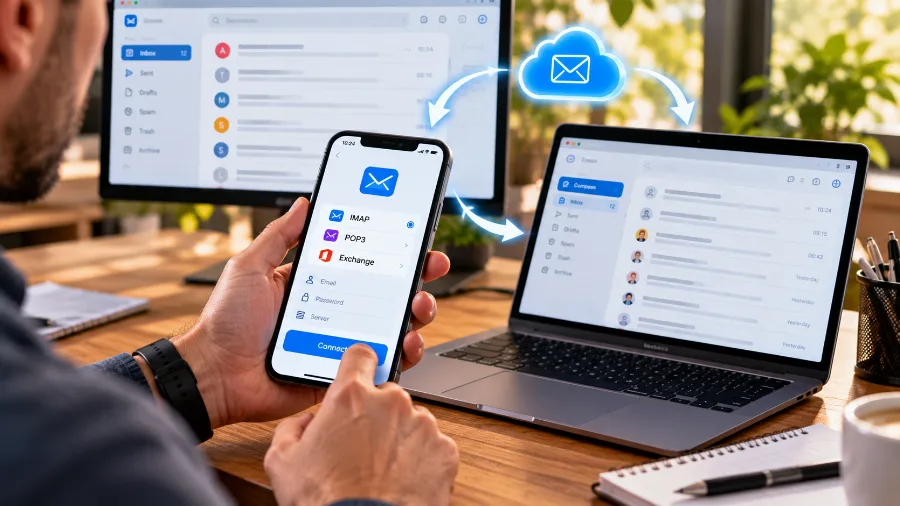
Choose IMAP, not POP3. With IMAP, messages stay on the server and look the same on your phone, laptop and webmail. With POP3, they are downloaded to one device and missing on the others. You'll find the exact server names in your hosting control panel. A step-by-step guide is available in our knowledge base.
Step 5: SPF, DKIM and DMARC so your emails don't go to spam
This is the step many businesses skip, and then wonder why their quotes end up in spam. Mail systems such as Gmail and Outlook check whether a message really comes from your domain. To prove it, three records are added to your domain's DNS:
- SPF – a list of the servers allowed to send email on behalf of your domain;
- DKIM – a digital signature on every message that proves it wasn't altered along the way;
- DMARC – a rule telling recipients what to do with messages that fail the checks, and where to send you reports.

Gmail and Yahoo now require SPF and DKIM from all senders, and DMARC from those who send large volumes. Without them, your emails will increasingly be rejected or marked as spam. With email on your hosting, SPF and DKIM are usually set up automatically. Check them once in your DNS settings and add a DMARC record if it's missing.
If your emails are already landing in customers' spam folders, the knowledge base has a separate guide on what to check.
How to choose your email addresses
Well-organised addresses make your company easier to contact and your email easier to manage. Here is a common scheme:
- office@ or info@ – a general address for your website, business cards and enquiries;
- name@ or firstname.lastname@ – a personal address for each employee, for example john@ or john.smith@;
- sales@, support@, accounting@ – department addresses that can be forwarded to the person in charge;
- noreply@ – for automatic emails from your website or shop that don't expect a reply.
Pick one scheme for personal addresses and stick to it. If one colleague is john@ and another is m.jones@, customers will struggle to guess the right address. Use only Latin letters, with no spaces or special characters.
How to keep your business email secure
Your mailbox is where invoices, contracts, passwords for other systems and customers' personal data arrive. That makes it a frequent target of attacks. A few simple measures reduce the risk considerably:
- A strong, unique password for every mailbox – use a password manager so you don't have to remember them;
- Two-factor login – turn it on wherever possible: in your hosting control panel and in webmail;
- Watch out for phishing – an email "from your bank" or "from the courier" with a login link is the most common way passwords are stolen. Check the sender's address and never enter passwords through links in emails;
- Up-to-date devices – the phone and computer you read email on should have current updates and a lock code;
- Backups – make sure your hosting keeps copies of your mail, so a message deleted by mistake can be restored.
What to do when an employee leaves
This is where a business email shows its biggest advantage over personal free addresses. When an employee leaves, you lose neither the correspondence nor the customers who wrote to them. Here's what to do:
- Change the mailbox password on their last day;
- Forward incoming mail to the colleague taking over their customers, for at least a few months;
- Turn on an auto-reply telling senders who to contact from now on;
- Archive the messages before deleting the mailbox if they contain contracts or important customer history.
If the employee used a personal Gmail account for work, none of this is possible, and everything they wrote to customers leaves with them.
Common business email mistakes
- Email in someone else's name – the domain or hosting is registered by an employee or an agency. When you part ways, the company loses access to its own correspondence;
- Weak passwords – a stolen mailbox is used to send spam, and your domain ends up on blacklists;
- Missing SPF and DKIM – your quotes and invoices go to spam and you don't even know it;
- A full mailbox – once the space runs out, new messages bounce back to the sender. Monitor the quota or turn on automatic archiving;
- An expired domain – the moment the domain expires, email stops. Turn on auto-renewal;
- One mailbox for everyone – when the whole team shares one password, you can't tell who sent what, and changing the password stops everyone's work.
Frequently asked questions
Can I have a business email without a website?
Yes. You only need a domain and an email service. Many businesses set up email first and build the website later, using the same domain for both.
How much does a business email cost?
If email comes with your hosting, the cost is included in the plan and usually covers several or unlimited mailboxes. Separate email services charge monthly per user, so the cost grows quickly with a larger team.
Can I read my business email in Gmail?
Yes. You can add your business mailbox to the Gmail app on your phone as an IMAP account, or forward messages to a personal address. For businesses, it's safer for employees to use a separate account for work email.
How many mailboxes do I need?
Usually one per employee plus one general address such as office@. Department addresses (sales@, support@) don't have to be separate mailboxes. They can be forwarders to the person responsible, which saves space and money.
What is the difference between a mailbox and a forwarder?
A mailbox stores messages on the server and has its own password, which you use to sign in and send. A forwarder has no storage and no password: it simply passes incoming messages on to another address. Forwarders suit shared addresses, mailboxes suit the people who write on behalf of the company.
How long does it take to create a business email?
If the domain and hosting are ready, a mailbox takes a minute to create. With a new domain, you have to wait for registration and for DNS records to spread, which usually takes from a few minutes to a few hours.
What happens to my old emails if I change provider?
Messages can be moved to the new provider through IMAP migration, without losing anything. The key is not to delete the old mailbox before the transfer is complete.
Conclusion
A business email is one of the cheapest and most useful steps any business can take. You need a domain and hosting with email, a few minutes to create the mailboxes and a little attention to SPF, DKIM and DMARC so your messages reach customers. Register everything in the company's name, use strong passwords and make sure your domain renews on time.
Ready for a business email? Check whether your domain is available and choose hosting with email included.